Place a destination marker on your in-game map, hit a hotkey, and you’re there. Save locations, build a personal waypoint library, and share discoveries with the community.
A standalone teleportation and waypoint manager for Crimson Desert
Changelog
v1.2.1
– Minor update to address memory allocation issues
v1.2.0
– Added Advanced Options tab with custom teleport height controls
– Ground (1200) and Abyss (2400) height presets for map markers with no elevation data
– Height override option to force all map teleports to use a custom height
– “Always start in Advanced mode” setting persisted across sessions
– Map destination saving disabled in Advanced mode — use Save Position for accurate coords
v1.0.0
– Initial release
Features
Teleportation
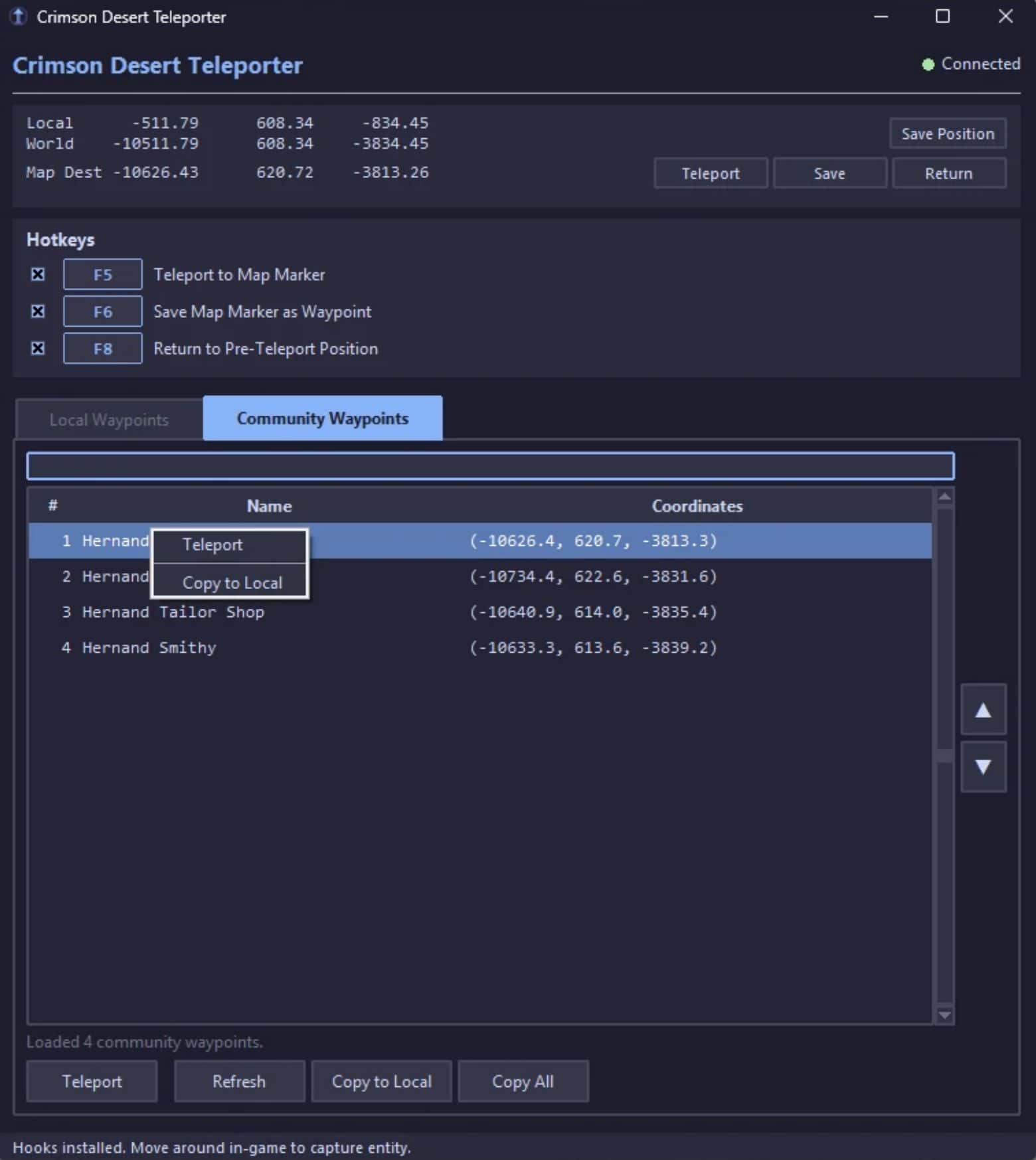
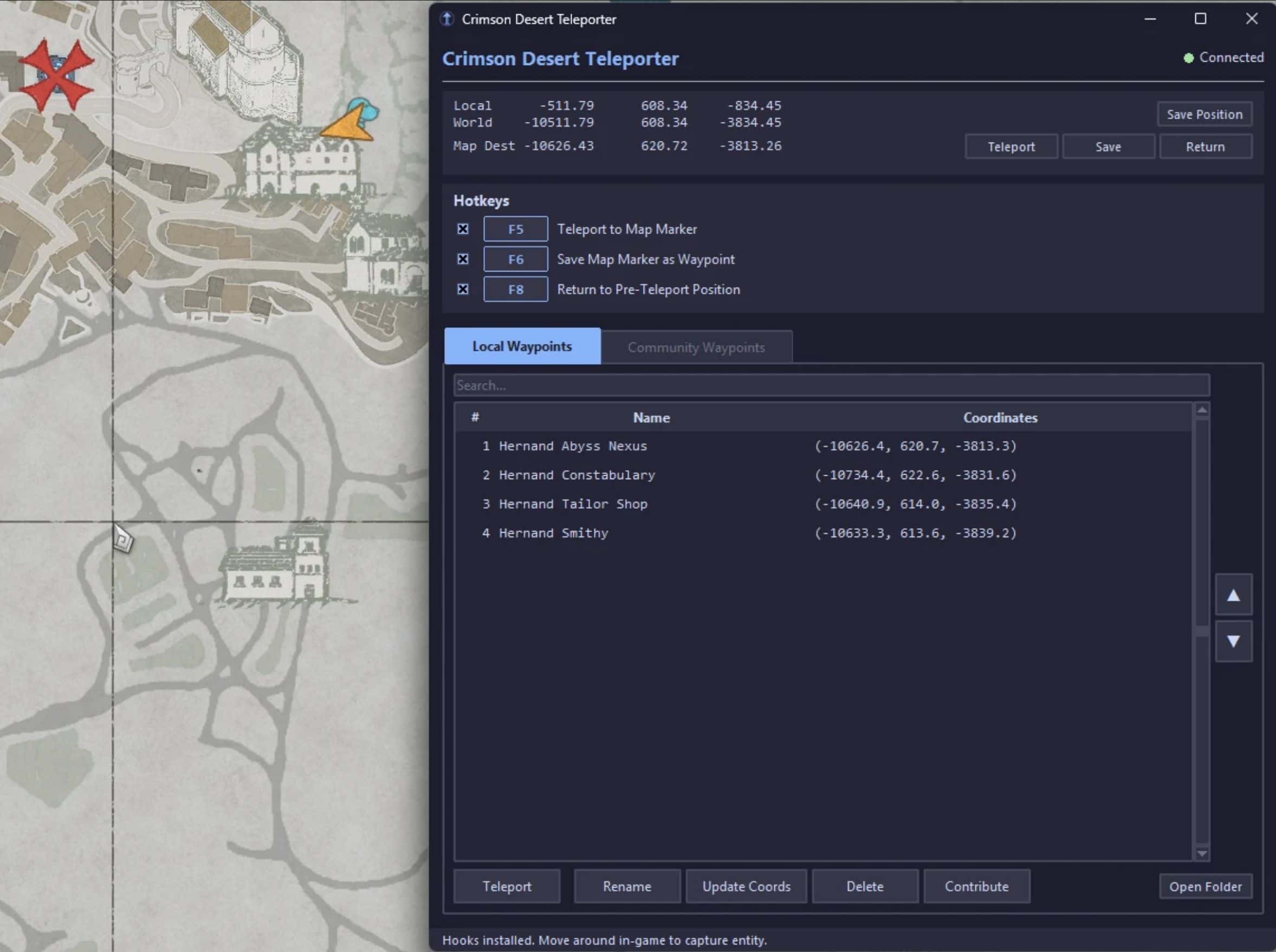
– Map Marker Teleport — Open your in-game map, place a destination marker (red X) on any existing landmark or waypoint, press the assigned hotkey and you’re instantly teleported.
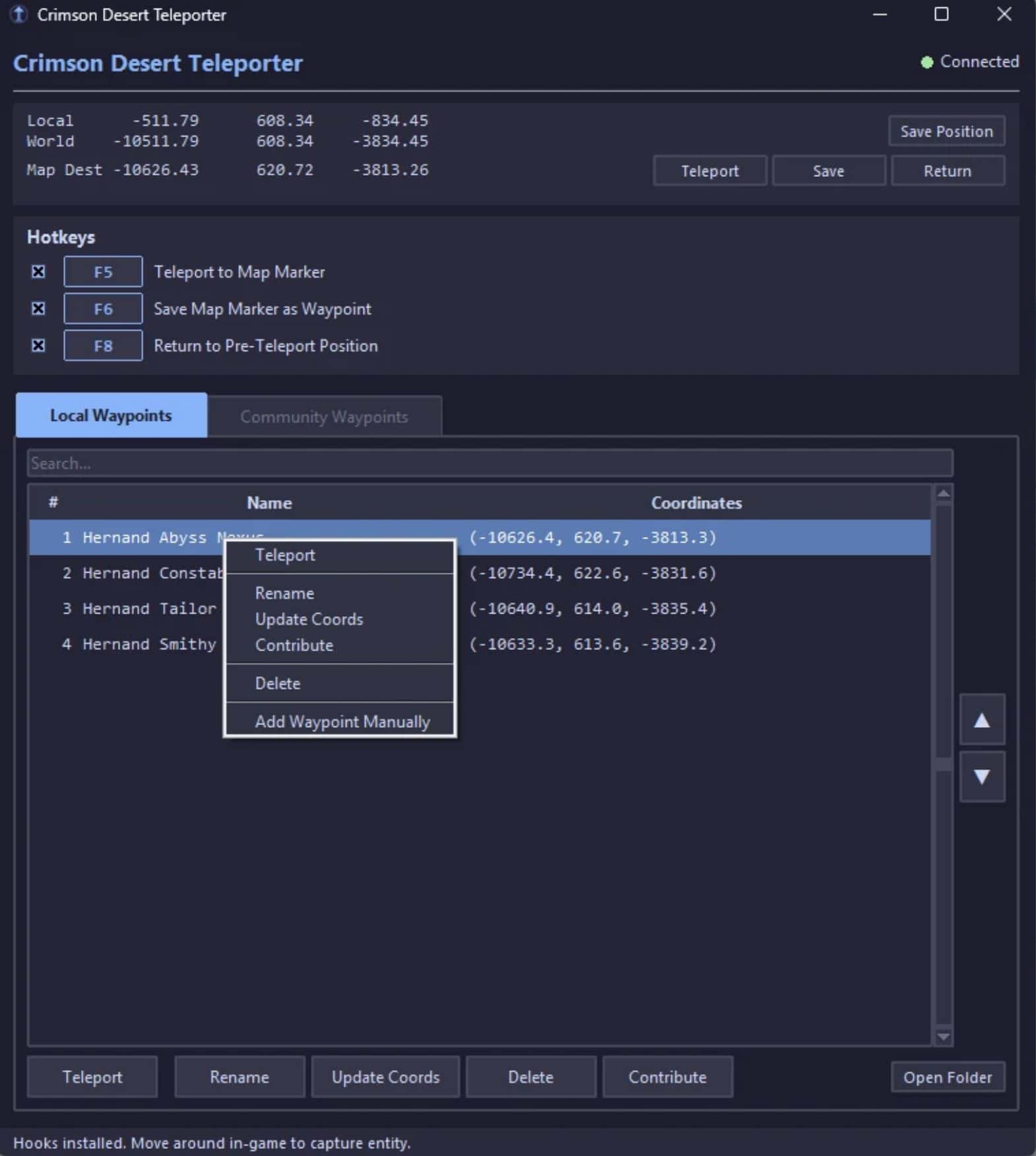
– Waypoint Teleport — Select any saved custom waypoint and teleport instantly, or double-click to go.
– Return / Abort — Changed your mind? Press the Return hotkey to snap back to your pre-teleport position.
– 10s Invulnerability — Automatic invulnerability window after each teleport to survive any fall.
Waypoint Manager
– Save Position — Press the assigned hotkey or click Save to bookmark your current location with a custom name.
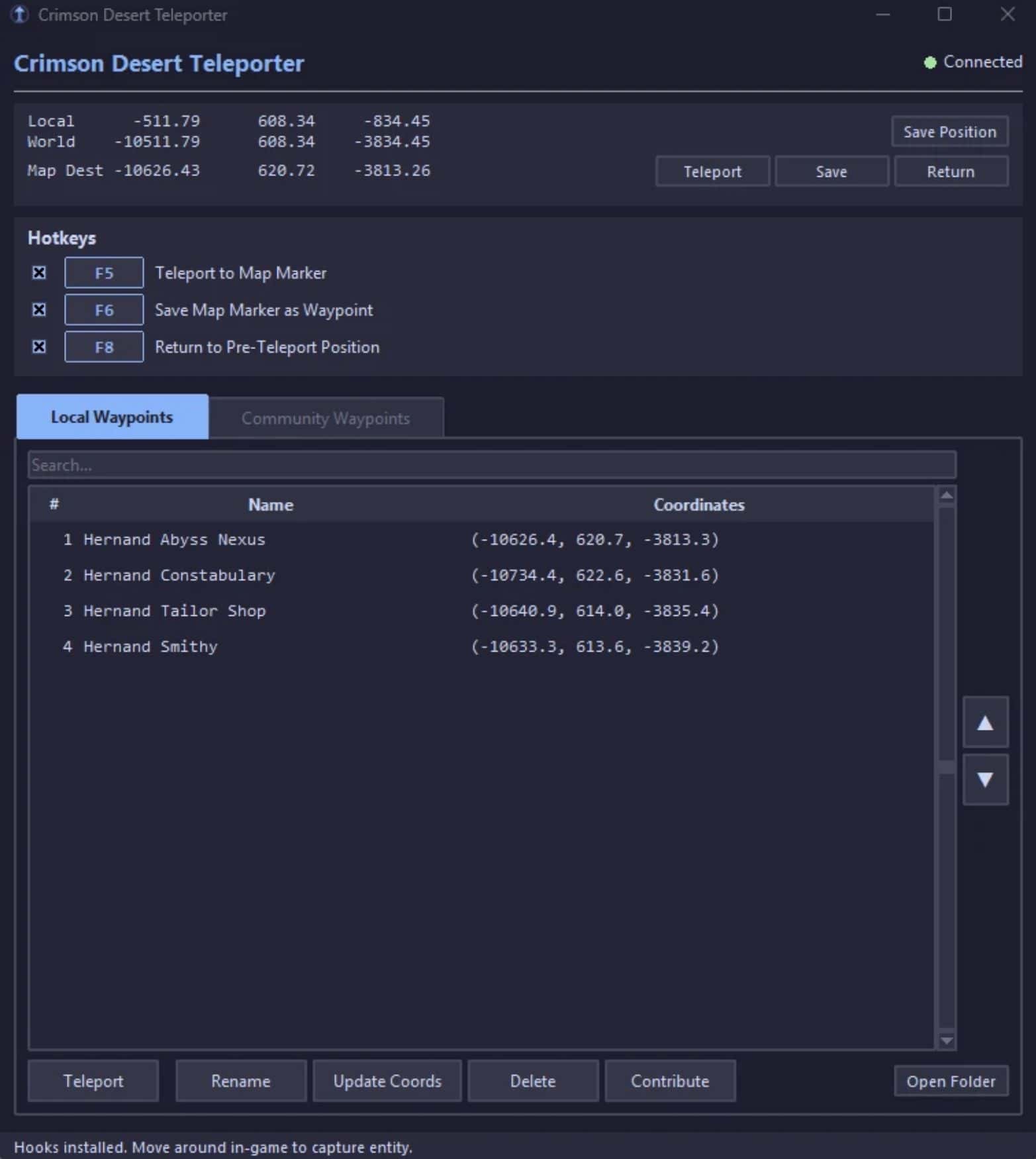
– Local Waypoints — Your personal waypoint library saved as individual JSON files, easy to back up or share.
– Drag & Drop Reordering — Click and drag waypoints to organize your list.
– Multi-Select — Select multiple waypoints with Ctrl/Shift+Click for bulk operations.
– Search & Filter — Quickly filter your waypoint list with the built-in search bar.
– Right-Click Context Menus — Teleport, rename, update coordinates, contribute, or delete with a right-click.
– Manual Entry — Add waypoints by typing exact coordinates (X, Y, Z validation included).
Community Waypoints
– Shared Waypoint Database — Browse waypoints discovered and submitted by other players.
– Auto-Refresh on Launch — Community waypoints load automatically when you start the tool.
– Contribute — Submit your own waypoints to the shared database with one click.
– Copy to Local — Pull community waypoints into your personal library to customize them.
– Copy All — Grab the entire community list at once.
Advanced Options (New in v1.2)
– Custom Teleport Height — Many map markers return no height data (Y=0). Advanced mode lets you set a custom height so you can still teleport to those locations.
– Ground / Abyss Presets — One-click height presets: Ground (1200) & Abyss (2400). These are just best guesses for max height.
– Custom Height Entry — Enter any height value manually for precise control.
– Height Override — Force ALL map marker teleports to use your custom height, ignoring the marker’s original Y coordinate.
– Always Start Advanced — Save your preference to automatically enable Advanced mode on launch.
– Smart Saving — Map destination saving is disabled in Advanced mode to prevent saving inaccurate height data. Teleport first, then use Save Position once you’re at the location for accurate coordinates.
Customizable Hotkeys
– Rebindable — Click any hotkey badge in the UI and press your preferred key to rebind.
– Modifier Support — Bind with Ctrl, Alt, or Shift + any key (e.g., Ctrl+F5, Alt+T).
– Toggle On/Off — Individually enable or disable each hotkey with checkboxes.
– Persistent Settings — Your hotkey configuration saves automatically between sessions.
Default Hotkeys
– F5 Teleport to map marker
– F6 Save current position as waypoint
– F8 Return to pre-teleport position (abort)
All hotkeys are rebindable in the UI. Click the key badge next to any hotkey to reassign it. Supports modifier combos like Ctrl+Key, Alt+Key, or Shift+Key.
Easy Install (Recommended)
– Download and extract the mod to any folder
– Double-click run_teleporter.bat. The launcher handles everything else automatically.
– Requests administrator privileges (required for memory access).
– Checks for Python and prompts you to install it if missing.
– Downloads the pymem dependency into a local folder (no global install needed).
– Launches the program.
Manual Install
– Install Python 3.10+ (check “Add Python to PATH” during setup)
– Install pymem: pip install pymem
– Run as Administrator: python cd_teleporter.py
How to Use
– Launch the game and load into the world with your character.
– Run the teleporter (via the .bat file or manually). It will automatically detect and attach to the game.
– Wait for “Connected” — the status indicator in the top-right turns green once hooks are installed.
– Move around in-game — walk a few steps so the tool can capture your player entity.
– Teleport!
– – Open your map, place a marker, press F5.
– – Or select a saved waypoint and press Teleport / double-click it.
– Save locations — Choose the corresponding save option for either the Map Destination marker or your current location.
– Return — press F8 to snap back if you don’t like where you landed
Using Advanced Mode
– Open the Advanced tab in the teleporter.
– Check Enable Advanced Options.
– Choose a height preset (Ground or Abyss) or enter a custom value.
– Now when you teleport to a map marker that has no height data, the tool uses your configured height instead of rejecting the teleport.
– Enable Always override if you want every map teleport to use your custom height regardless.
– To save accurate waypoints in Advanced mode: teleport to the location, land on the ground, then click Save Position.
Included Files
cd_teleporter.py Main teleporter application
run_teleporter.batOne-click launcher with auto-setup
FAQ
Q: The status says “Waiting for game…” but the game is running.
A: Make sure you’re running this program as Administrator. The .bat launcher does this automatically.
Q: I teleported and fell through the ground / died.
A: The 10-second invulnerability window should protect you in most cases. If you land somewhere weird, press F8 to return. Some map marker locations are on geometry that hasn’t loaded yet — try placing the marker closer or on a visible landmark.
Q: Map marker teleport says “no height data” or Y=0.
A: Many map markers don’t include elevation data. Enable Advanced Options in the Advanced tab and set a height preset (Ground or Abyss) to teleport to these locations anyway.
Q: The game updated and the teleporter shows “AOB not found.”
A: Yep. I’ll update it if I feel like it. I’m not compiling this program so my code is fully open for someone else to update if needed.
Q: Can I share my waypoints with friends?
A: Yes! Waypoints are saved as individual JSON files in the CD_Waypoints folder in your %localappdata% directory. Share the files directly, or use the Contribute button to submit them to the community database that all users can access
Q: The program shows the status – “Entity hook AOB not found — game version mismatch?” but the game hasn’t updated.
A: There could be a few reasons for this.
– There are multiple copies of the teleporter program running. Make sure all copies are closed and try launching it again.
– The program should release all hooks when closed, but that doesn’t always happen. Restart your game to clear the hooks.
– Another mod, trainer, or cheat table you are using is hooking into the same memory locations as this program. You will need to troubleshoot yourself.
– The game actually DID update!
Requirements
– Windows 10/11
– Python 3.10 or newer (https://www.python.org/downloads/)
– Administrator privileges
– pymem (auto-installed by the .bat launcher)
Compatibility
– Built and tested for Steam version 1.02.00
– Should work with future updates as long as the hooked instructions don’t change
– Safe to use alongside other mods that don’t hook the same instructions