A desktop mod manager built specifically for Crimson Desert. It understands the game’s PAZ/PAMT/PAPGT archive format, so you can install multiple mods that modify the same game archives without breaking anything. One-click apply, one-click revert to vanilla.
THIS IS BETA!!!
Features
Drag-and-Drop Install
Drop a mod file onto the window and it’s installed. Supports:
– ZIP archives — containing modified game files or installer scripts
– Folders — loose directories with modified PAZ/PAMT files
– Script mods (.bat / .py) — runs the installer, captures changes automatically
– Binary patches (.bsdiff) — pre-generated patch files
– ASI plugins (.asi) — native DLL plugins for ASI Loader
Mod Health Check
Every mod is automatically validated before import:
– Duplicate file detection — catches mods that add files already in another PAZ (would crash the game). Auto-fixed by redirecting the entry.
– Integrity chain verification — validates PAMT and PAPGT hashes before applying
– PAZ size validation — catches when PAMT size fields don’t match actual files
– Version mismatch detection — warns if the mod was built for a different game version
– Bug report generator — one-click copy of a detailed technical report you can send to the mod author
PAZ-Shift Aware Composition
Mods that rearrange PAZ files (like LootMultiplier’s data shift) work alongside mods that patch specific bytes (like Inventory Expander). The apply engine detects file size changes and automatically adjusts patch offsets so both mods compose correctly without crashing.
Delta-Based Patching
Mods are stored as binary deltas against your vanilla game files, not full copies. This means:
– Small on disk — only the changed bytes are saved and backed up
– Composable — multiple mods can safely modify the same PAZ file
– Reversible — vanilla files are always preserved
3-Level Conflict Detection
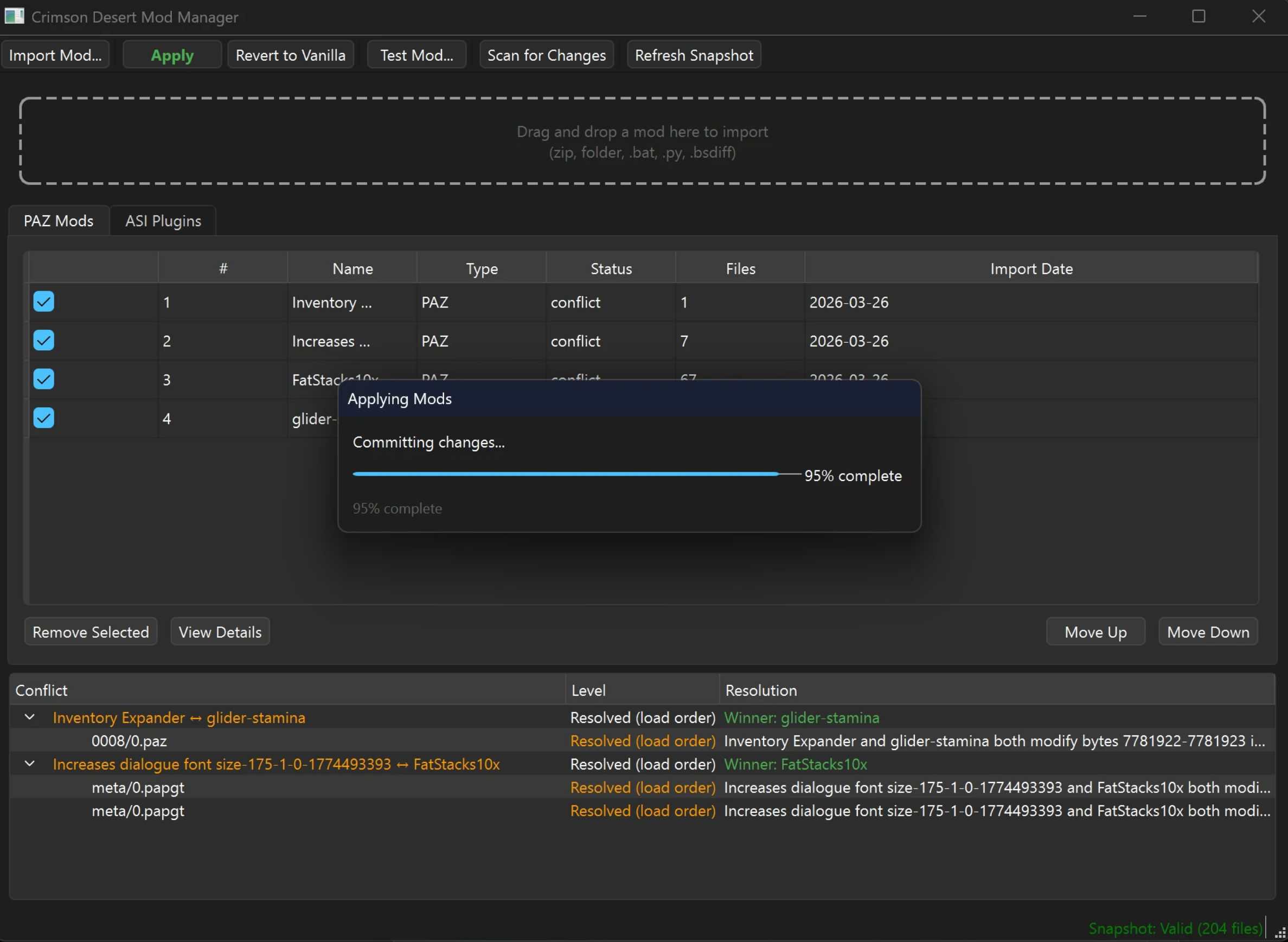
When two mods touch the same files, the manager shows exactly what overlaps:
– PAPGT (metadata) — auto-handled, no action needed
– PAZ (archive) — same file, different byte ranges — usually compatible
– Byte-Range (data) — overlapping changes — resolved automatically by load order
Conflicts are displayed in a tree view with color-coded severity and plain-English explanations.
Load Order & Priority
– Reorder mods with Move Up / Move Down buttons
– Higher position = applied last = wins conflicts
– Enable/disable individual mods without removing them
One-Click Apply & Revert
– Apply — composes all enabled mods onto vanilla using atomic file operations (never leaves your game half-patched)
– Revert to Vanilla — restores original game files instantly
– Untick a mod and click Apply — that mod’s changes are properly removed
– Crash recovery built in — if something goes wrong mid-apply, it rolls back
Script Mod Support
For mods distributed as installer scripts:
– Drop the zip or script onto the manager
– A console window opens — interact with the installer as normal
– The manager detects which game files changed and captures them as deltas
– The mod is now fully managed — disable, reorder, or revert anytime
ASI Plugin Management
Dedicated ASI Plugins tab with full lifecycle management:
– Install — copies .asi, all .ini config files, and ASI loader DLLs (version.dll, winmm.dll, etc.)
– Update — replace a plugin with a newer version while preserving enabled/disabled state
– Uninstall — deletes the .asi and all companion .ini files from bin64/
– Enable/Disable — toggle plugins without uninstalling
– Conflict detection — warns when two plugins hook the same targets
– Config editor — opens .ini files in your text editor
– Shows ASI Loader installation status
Test Mod (Dry Run)
Check compatibility before installing:
– Analyzes which files the mod changes
– Runs conflict detection against your current setup
– Generates a report you can export
Built-In Bug Reporter
Collects system info, mod list, conflict status, and recent logs into a diagnostic report you can copy or save.
How It Works
Crimson Desert stores game data in PAZ archives, indexed by PAMT files, with PAPGT as a hash registry. This manager:
– Snapshots your vanilla game files on first run (SHA-256 hashes)
– Validates mods on import — catches broken integrity chains, duplicates, and version mismatches before they crash your game
– Imports mods by diffing modified files against vanilla, storing only the binary delta
– Composes all enabled mod deltas onto vanilla in priority order when you click Apply — with automatic offset adjustment for PAZ-shift mods
– Rebuilds the PAPGT integrity chain so the game accepts the modified files
– Commits atomically — all files are staged and swapped in one operation
Important
– Make sure your game files are vanilla (unmodded) before first launch. Use Steam → Verify Integrity if you have mods installed manually.
– The snapshot must be taken on clean game files — this is your baseline for all mod operations.
Installation
– Download CrimsonDesertModManager.exe from the Files tab
– Place it anywhere you like
– Run it — on first launch it will ask you to locate your Crimson Desert install
– The manager takes a snapshot of your vanilla game files (takes a minute)
– Start dropping mods in!
Requirements
– Windows 10/11
– Crimson Desert (Steam)
– Minimal disk space — backups are byte-range level, not full file copies
No Python required — the exe is fully standalone.
FAQ
– Q: Is it safe? Can it break my game?
– A: The manager always keeps backups of the bytes it modifies. Click “Revert to Vanilla” at any time to restore your game. All file operations are atomic — if something fails mid-apply, it rolls back automatically. If all else fails, Steam → Verify Integrity restores everything.
– Q: A mod shows a health check warning — what do I do?
– A: The health check catches common mod packaging errors. For critical issues (like duplicate file paths), the manager auto-fixes them when possible. Click “Copy Bug Report” to get a detailed report you can send to the mod author so they can fix the root cause.
– Q: Can I use this with mods I installed manually?
– A: Best practice is to start clean: Verify game files through Steam, then import all mods through the manager. This ensures accurate deltas and proper revert support.
– Q: Two mods conflict — will the game crash?
– A: Not necessarily. The conflict view shows what overlaps and who wins. For simple byte conflicts, load order resolves it. For PAZ-shift conflicts (one mod rearranges the archive), the manager automatically adjusts offsets so both work together.
– Q: How does load order work?
– A: Mods higher in the list are applied last and win any byte-range conflicts. Use Move Up/Move Down to adjust. The conflict view at the bottom shows exactly what overlaps and who wins.
– Q: Does it work with the latest game update?
– A: After a game update, use Steam → Verify Integrity to get clean files, then delete the app data folder (%LOCALAPPDATA%cdmm), relaunch, take a new snapshot, and re-import your mods.
– Q: Does it work with ASI mods?
– A: Yes. The ASI Plugins tab manages .asi files separately from PAZ mods. You can install, update, uninstall, enable/disable, and detect conflicts between ASI plugins.