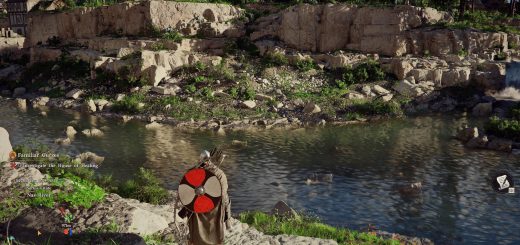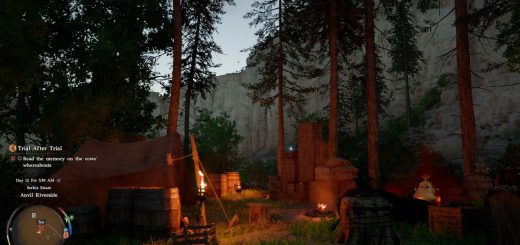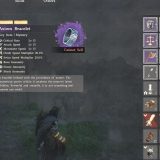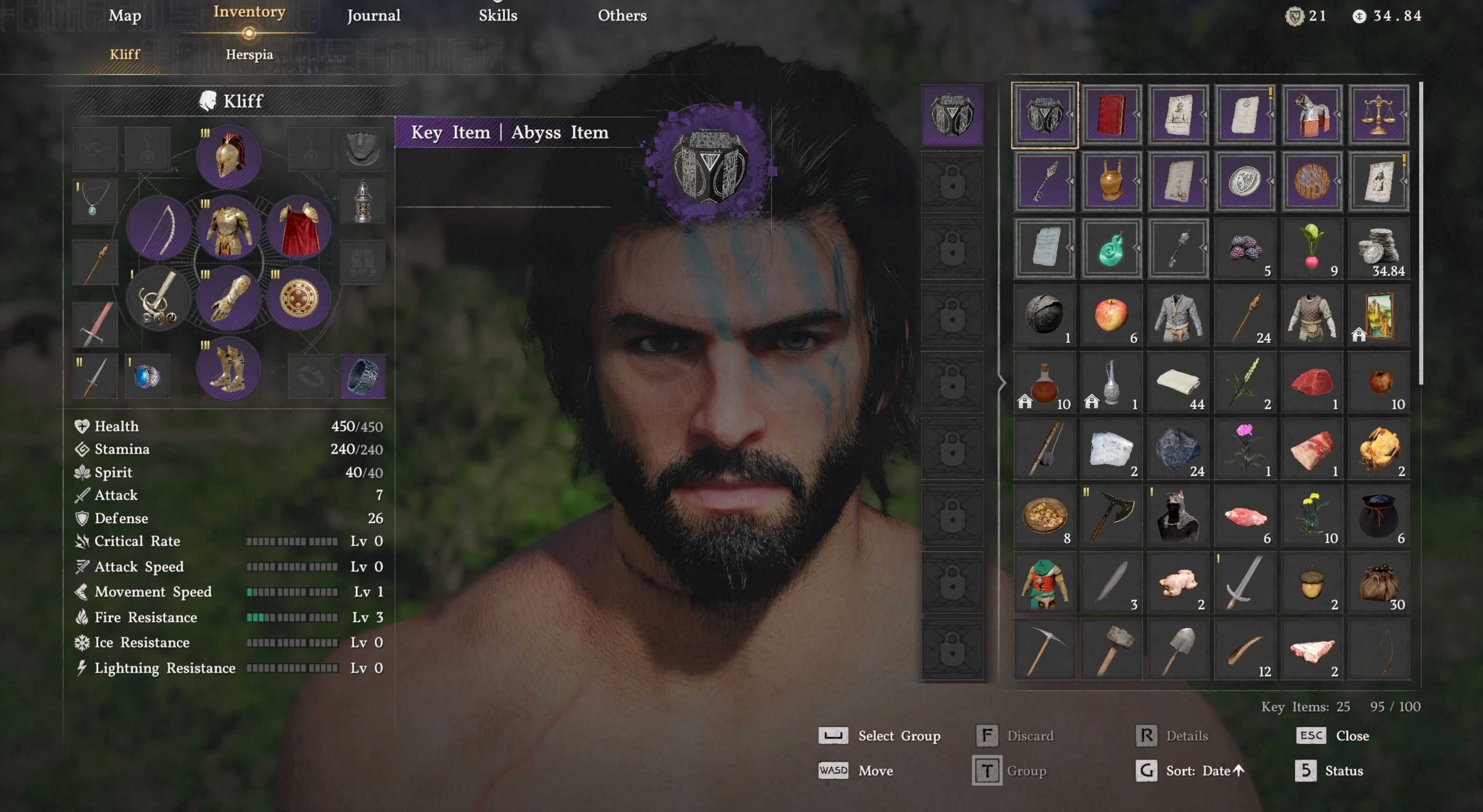
This mod allows you to hide equipped gear visually in Crimson Desert using customizable hotkeys. Toggle visibility per category for weapons, shields, bows, armor, tools, and lanterns. Perfect for cleaner screenshots, aesthetic character builds, or simply enjoying the world without gear clutter.
Key Features
– Toggle, show, or hide equipped gear per category with customizable hotkeys
– 20 built-in categories covering weapons, shields, bows, armor pieces, accessories, tools, and lanterns
– Global show-all / hide-all hotkeys to control every category at once
– User Presets: 3 custom part groups with independent toggle hotkeys
– Fully configurable via INI with per-category settings
– Open-source with full transparency
Requirements
– Crimson Desert (Steam version)
Installation
Step 1: Install an ASI Loader
You need an ASI Loader to load .asi mods. If you already have one (e.g. from another mod), skip to Step 2.
Download the x64 build of Ultimate ASI Loader and place one of the following DLLs into your bin64 folder:
– winmm.dll – Recommended, works for most setups
– version.dll – Alternative if winmm.dll conflicts
– dinput8.dll – Another alternative
How to verify: After completing Step 2, launch the game once. If no CrimsonDesertEquipHide.log file appears in bin64, the ASI Loader is not loading. Try renaming the DLL to one of the other variants listed above.
Step 2: Install the mod
1. Download the latest release from the files section
2. Extract CrimsonDesertEquipHide.asi and CrimsonDesertEquipHide.ini into your bin64 folder
Step 3: Launch and play
Launch the game. Press V (default) to toggle equipment visibility. By default, the INI is configured to hide Shields, Helms, and Masks on game load.
File placement
<Crimson Desert>/bin64/
├── CrimsonDesert.exe (Game executable)
├── winmm.dll (ASI Loader)
├── CrimsonDesertEquipHide.asi (This mod)
├── CrimsonDesertEquipHide.ini (This mod’s configuration)
└── …
Using with OptiScaler
If you use OptiScaler for frame generation or upscaling, the standard ASI Loader (e.g. winmm.dll) will conflict with OptiScaler’s own dxgi.dll. Follow these steps instead:
1. Delete winmm.dll (or whichever ASI Loader DLL you placed) from bin64. OptiScaler will handle mod loading instead
2. Open OptiScaler.ini, find the [Plugins] section, and set LoadAsiPlugins = true
3. Create a plugins folder inside bin64
4. Move CrimsonDesertEquipHide.asi and CrimsonDesertEquipHide.ini into the plugins folder
<Crimson Desert>/bin64/
├── CrimsonDesert.exe
├── OptiScaler.ini (LoadAsiPlugins = true)
├── dxgi.dll (OptiScaler)
├── plugins/
│ ├── CrimsonDesertEquipHide.asi
│ ├── CrimsonDesertEquipHide.ini
│ └── … (Other ASI mods go here too)
└── …
This applies to any ASI mod, not just this one. If you have other .asi mods (e.g. CDSprintHold), move them into the plugins folder as well.
Configuration
The mod can be configured by editing the CrimsonDesertEquipHide.ini file:
[General]
; Log level: Trace, Debug, Info, Warning, Error
LogLevel = Info
; Apply only to player characters
PlayerOnly = true
; Set to true if you use mods that alter the default visibility of equipment
; via PAZ patching (e.g. character replacers like ‘Playing Kliff as Damiane’,
; armor replacers, transmog mods). ForceShow overrides their changes so
; toggling equipment back to visible still works.
; Safe to leave false if you are not using such mods.
ForceShow = false
; [Experimental] Prevents baldness when hiding helmets/cloaks
; Hair/beard may occasionally disappear; re-toggling the helmet (show then hide) restores it
BaldFix = true
; Prevents hidden equipment from briefly flashing during state transitions
GlidingFix = true
; Force all categories visible / hidden at once (empty = disabled)
ShowAllHotkey =
HideAllHotkey =
[Shields]
Enabled = true
ToggleHotkey = V
ShowHotkey =
HideHotkey =
DefaultHidden = true
Parts = CD_MainWeapon_Shield_L, CD_MainWeapon_Shield_R, …
[Helm]
Enabled = true
ToggleHotkey = V
ShowHotkey =
HideHotkey =
DefaultHidden = true
Parts = CD_Helm, CD_Helm_Acc, …
[UserPreset1]
Enabled = false
ToggleHotkey =
ShowHotkey =
HideHotkey =
DefaultHidden = false
Parts =
Hotkey Types
Each category supports three independent hotkey bindings:
– ToggleHotkey – flips between hidden and visible
– ShowHotkey – always forces visible
– HideHotkey – always forces hidden
Global overrides in [General]:
– ShowAllHotkey – forces ALL categories visible
– HideAllHotkey – forces ALL categories hidden
Hotkey Format
– Named keys: V, F3, Numpad1, Mouse4, Gamepad_A, etc.
– Modifiers: Ctrl, Shift, Alt (or LCtrl, RCtrl, etc.)
– Multiple combos: V,Gamepad_LB+Gamepad_Y (V alone OR hold LB + press Y)
– Empty value disables the binding
See the full list at the Supported Input Names reference.
Using with Controllers
DetourModKit supports gamepad input natively via the XInput API. Use gamepad button names directly in the INI file:
; Toggle with gamepad Y button
ToggleHotkey = Gamepad_Y
; Use a modifier combo
ToggleHotkey = Gamepad_LB+Gamepad_Y
; Multiple independent combos (comma = OR)
ToggleHotkey = V,Gamepad_LB+Gamepad_Y
XInput only: Xbox controllers work natively. For PS4/PS5/Switch controllers, use an XInput translation layer (e.g. DS4Windows, DualSenseX, BetterJoy) or Steam Input to present your controller as XInput. See Gamepad Compatibility for details.
Compatibility with Replacer Mods
Set ForceShow = true if you use mods that alter the default visibility of equipment via PAZ patching (e.g. character replacers like “Playing Kliff as Damiane”, armor replacers, transmog mods). ForceShow overrides their changes so toggling equipment back to visible still works:
[General]
ForceShow = true
Safe to leave false if you are not using such mods.
User Presets
The INI file includes three UserPreset sections (UserPreset1, UserPreset2, UserPreset3) that let you create custom part groups with independent visibility control.
When a preset is enabled and contains parts, it takes full control of those parts:
– Only the preset’s own hotkey controls its parts
– Built-in category toggles (e.g. V for Shields/Helm/Mask) will NOT affect parts owned by an active preset
– Parts can appear in both a built-in category and a preset — the preset wins when enabled
– Set DefaultHidden = true on a preset if you want its parts hidden on startup
[UserPreset1]
Enabled = true
ToggleHotkey = F5
DefaultHidden = true
Parts = CD_Helm, CD_Cloak, CD_Shoulder
In this example, pressing V would still toggle Shields and Masks, but Helm would only respond to F5 because UserPreset1 owns it.
Known Limitations
– Toggle may take 1-3 seconds to take effect
– After a major game update, AOB patterns may need updating
– Currently only tested with the Steam version of the game
Troubleshooting
If you encounter issues:
– Set LogLevel = Debug in the INI file
– Check the log file in your game directory (CrimsonDesertEquipHide.log)
– For memory pattern errors, the mod needs an update for the current game version
After a game update: The AOB pattern scanning system automatically adapts to minor game changes, but major updates may require mod updates if core game functions have been modified.