
WHAT IT DOES
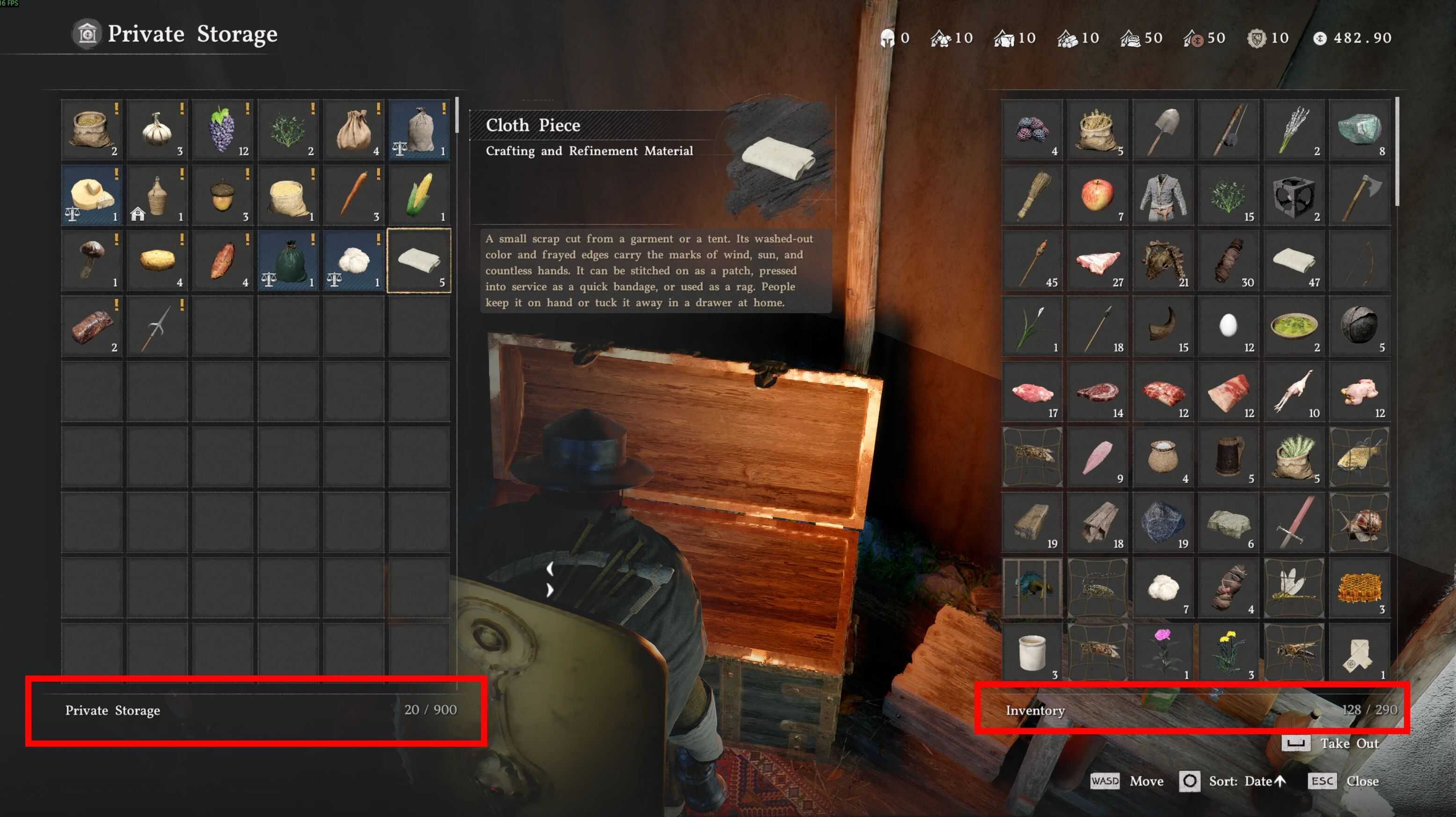
This tool patches values inside Crimson Desert’s 0.paz file to increase both the number of character inventory slots and private storage (camp chest) slots. The vanilla game ships with 50 starting slots / 300 maximum for inventory, and 999 slots for your camp’s private storage — this tool lets you raise both independently using safe, tested presets.
Rather than relying on hardcoded file offsets (which break with every game update), the tool dynamically scans the 0.paz file for the target signatures at runtime — so it will continue to work even after Pearl Abyss updates the game.
This tool is compatible with the Steam version of Crimson Desert only. Other distributions (Epic Games Store, console, etc.) are not supported and have not been tested.
How the slot limit works
The value you set acts as a hard cap — the game still counts bag purchases in the background, but your displayed slot count will never exceed your configured maximum.
Example: if your max is set to 200 and you buy a bag that would normally give you slot 91, your inventory stays at 200. However, that purchase is still tracked internally. If you later restore vanilla values, you won’t see 90 slots — you’ll see 91, because that bag was counted all along.
Removing the patch does not reset your progress — it just lifts the cap and reveals the slots you already earned.
PRESET OPTIONS
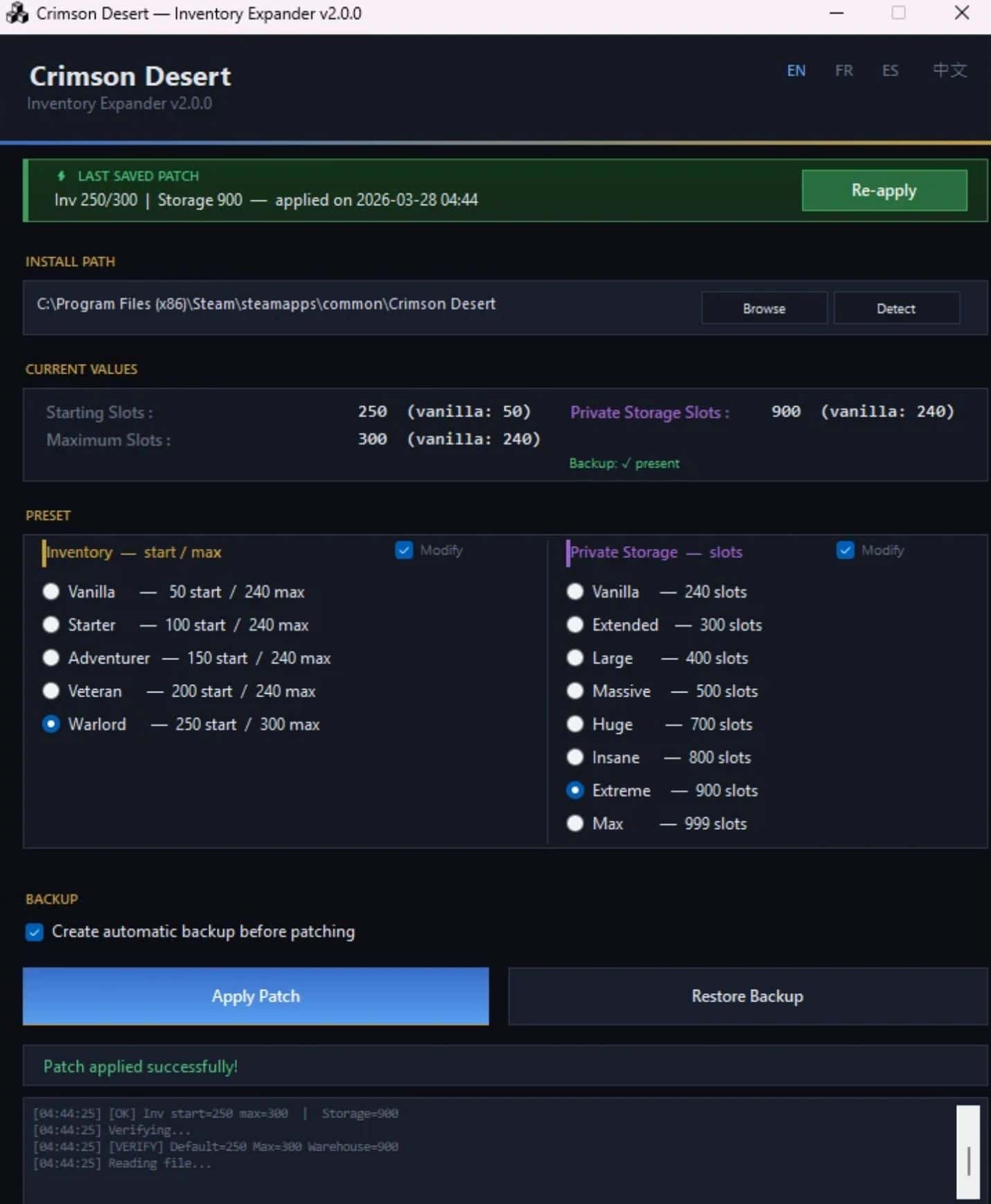
Inventory — use the Modify checkbox to enable or skip patching this section:
– Vanilla — 50 start / 240 max (original game values, use to restore)
– Starter — 100 start / 240 max
– Adventurer — 150 start / 240 max
– Veteran — 200 start / 240 max
– Warload— 250 start / 300 max
Private Storage (camp chest) — use the Modify checkbox to enable or skip patching this section:
– Vanilla — 240 slots (original game values, use to restore)
– Extended — 300 slots
– Large — 400 slots
– Massive — 500 slots
– Huge — 700 slots
– Insane — 800 slots
– Extreme — 900 slots
– Max — 999 slots
Custom values have been intentionally removed to prevent game crashes. All available presets have been tested for stability.
BACKUP SYSTEM
Before applying any patch, the tool automatically creates a backup of your original 0.paz file, saved as 0.paz.backup in the same folder as the original file. You can restore it at any time using the Restore Backup button.
The tool also detects when the game has been updated (by comparing file sizes). If a new game version is detected, the outdated backup is automatically replaced with a fresh one before patching.
ONE-CLICK RE-APPLY
Every time you apply a patch, your settings are saved in a configuration file located at: %AppData%\CD-InventoryExpander\config.json
On your next launch, the tool will display a status banner at the top showing your last applied patch — inventory and storage values included. If no patch has been saved yet, the banner will appear in orange as a reminder. Once a patch is saved, the banner turns green and a Re-apply button lets you restore your settings in a single click — no need to re-select anything.
IMPORTANT — STEAM UPDATES
Every Steam update will overwrite the patched 0.paz file and revert your inventory and storage back to vanilla values. Any extra slots beyond the vanilla maximum may appear empty until you re-patch.
Recommended routine after any Steam update:
– Launch Crimson Desert Inventory Expander first
– Click Re-apply in the green banner at the top
– Then launch the game
The status banner always reflects the current state — use it as a quick visual check before launching the game.
MULTILINGUAL
The interface is fully available in four languages. Use the toggle buttons in the top-right corner to switch at any time:
– EN — English (default)
– FR — French / Français
– ES — Spanish / Español
– 中文 — Chinese / 中文
HOW TO USE
Step 1 — Launch the tool
Double-click CD-InventoryExpander.exe. No installation required — the exe runs standalone from any folder.
On first launch, the tool will automatically scan your drives for a valid Steam installation of Crimson Desert. If found, the install path will be pre-filled. If not, you can enter it manually or use the Browse / Detect buttons.
Step 2 — Verify the install path
Check that the Install Path field points to your Crimson Desert folder, for example:
C:\Program Files (x86)\Steam\steamapps\common\Crimson Desert
The tool looks for the file 0008\0.paz inside that folder to confirm the path is valid.
Step 3 — Check current values
The Current Values section shows what is currently stored in your 0.paz file:
– Starting Slots — how many inventory slots your character starts with
– Maximum Slots — the hard cap the game will allow for inventory
– Private Storage Slots — current size of your camp chest
– Backup — whether a backup of the original file exists
Step 4 — Select presets
The preset panel is split into two independent columns:
– Left column — Inventory: controls your character’s bag slots
– Right column — Private Storage: controls your camp chest slots
Use the Modify checkbox at the top of each column to enable or disable patching that section. This lets you update only inventory, only storage, or both at once.
Step 5 — Apply the patch
Click Apply Patch. A confirmation dialog will show the exact values about to be written. Click Yes to confirm.
The tool will:
– Create a backup of 0.paz as 0.paz.backup (if the option is checked and no valid backup exists)
– Write the new slot values at the correct locations in the file
– Verify the written values by re-reading the file
– Save your settings to %AppData%\CD-InventoryExpander\config.json for future one-click re-apply
Step 6 — Launch the game
Start Crimson Desert normally through Steam. Your expanded inventory and storage will be active immediately.
FILE LOCATIONS
– Config file (last saved patch): %AppData%\CD-InventoryExpander\config.json
– Game backup: \steamapps\common\Crimson Desert\0008\0.paz.backup
– Patched file: \steamapps\common\Crimson Desert\0008\0.paz
To fully uninstall:
– Rename or delete 0.paz
– Rename 0.paz.backup to 0.paz
– Optionally delete %AppData%\CD-InventoryExpander\ to remove the saved config
Alternatively, use the Restore Backup button directly in the tool, which handles steps 1 and 2 automatically.
CREDITS
The original concept and offset research behind this tool is based on kindiboy’s mod: Inventory Expander and on yukentseeme’s mod: Inventory and Private Storage Expander – Json Mod Manager
This GUI is a personal reimplementation built on top of that work. Full credit goes to kindiboy and yukentseeme for the initial discovery and the dynamic scan approach.
DISCLAIMER & SUPPORT
This tool is provided as-is, without any warranty or guarantee of future updates. It may break after game patches if Pearl Abyss significantly changes the file structure. That said, suggestions and feedback are always welcome — feel free to leave a comment and I’ll do my best to look into it.
Compatibility: Steam version of Crimson Desert only. The tool auto-detects your Steam library path on launch.
Not affiliated with Pearl Abyss. Steam version only. Use at your own risk. Always keep a backup.








Cant autodetect files and by manually