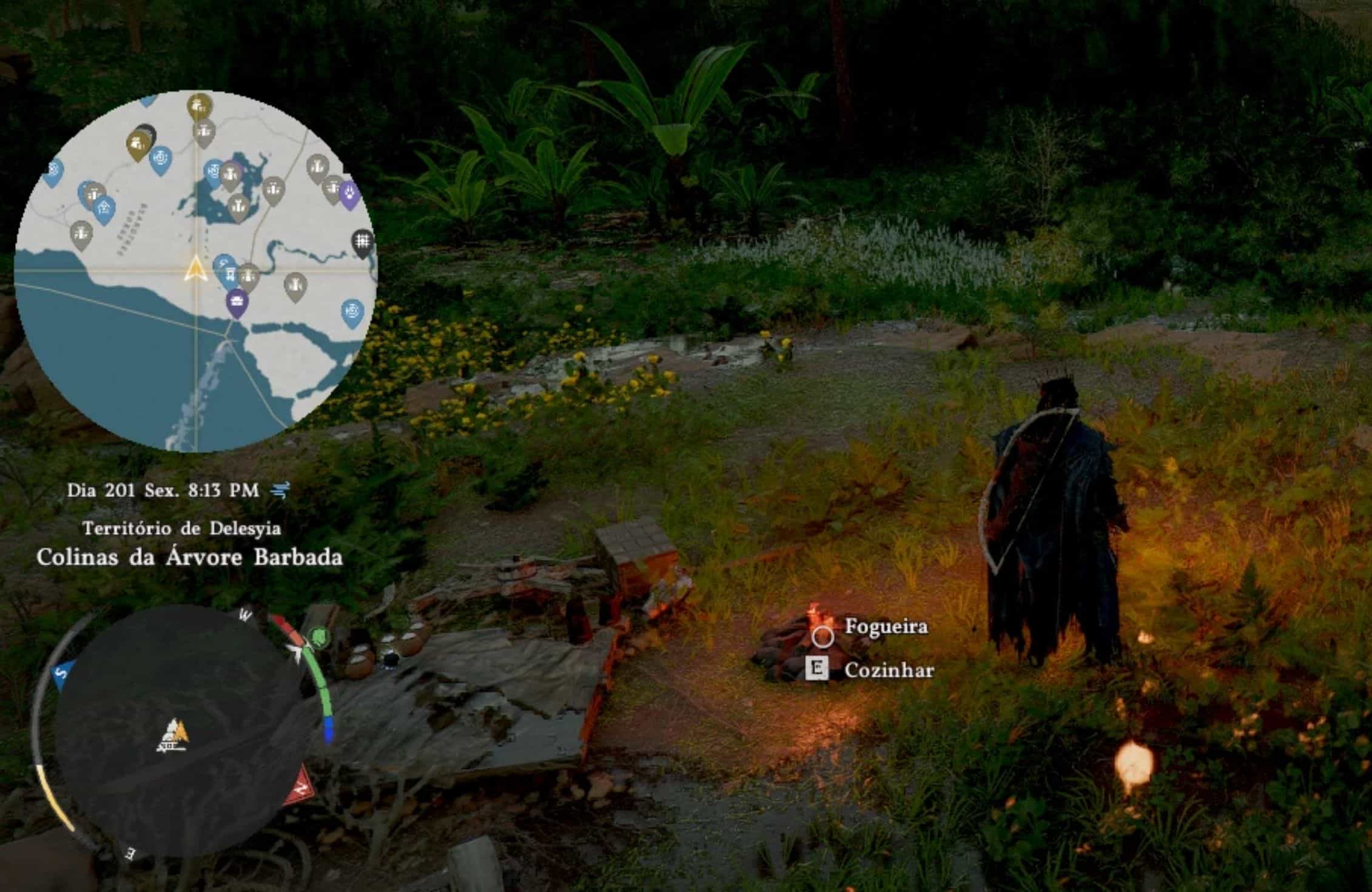
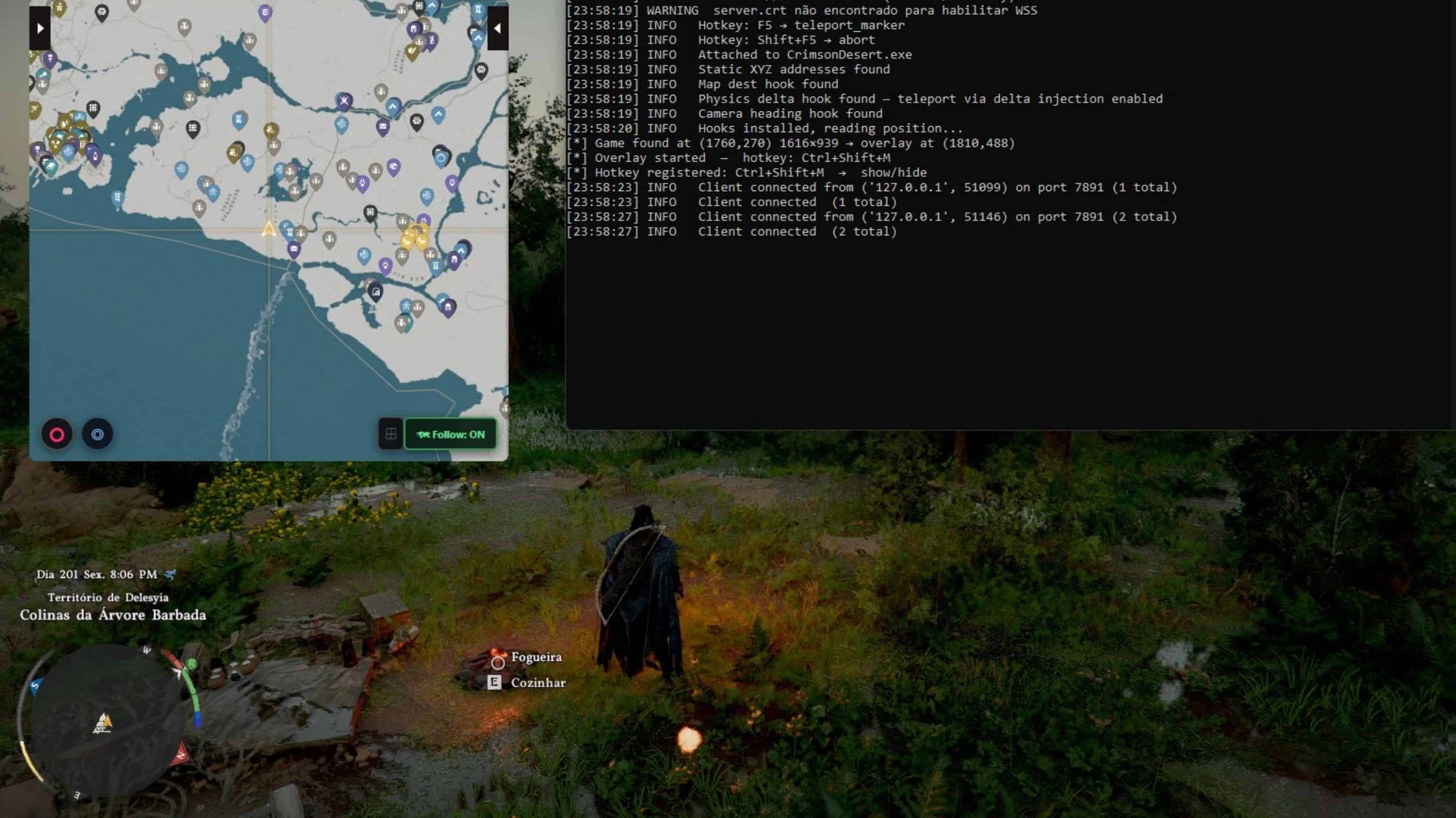
A single-window desktop tool that reads your character’s live position from CrimsonDesert.exe and displays a real-time marker on the MapGenie interactive map. Teleport anywhere, save waypoints, rotate the map with your camera, see nearby MapGenie locations, and sync location pins across devices.
Chrome extension now available:https://github.com/leandrodiogenes/cd-companion-chrome/releases/
Use MapGenie in your browser instead of the built-in overlay window. CD_Companion.exe must still be running in the background as the local server.
GitHub (please contribute):https://github.com/leandrodiogenes/cd-companion
Features
Live tracking
– Real-time player marker on the MapGenie map, updated at 60 Hz
– Directional arrow showing which way your character is facing (entity vector or position delta)
– Automatic realm detection, switches between Pywel and Abyss seamlessly
Teleportation
– Click anywhere on the map to teleport there
– Teleport to the in-game map destination marker (hotkey: F5)
– Undo any teleport instantly with the Abort button (hotkey: Shift+F5)
– 10 seconds of invulnerability applied automatically after every teleport
– Teleport hooks can be disabled entirely in settings for compatibility with other mods
Nearby locations
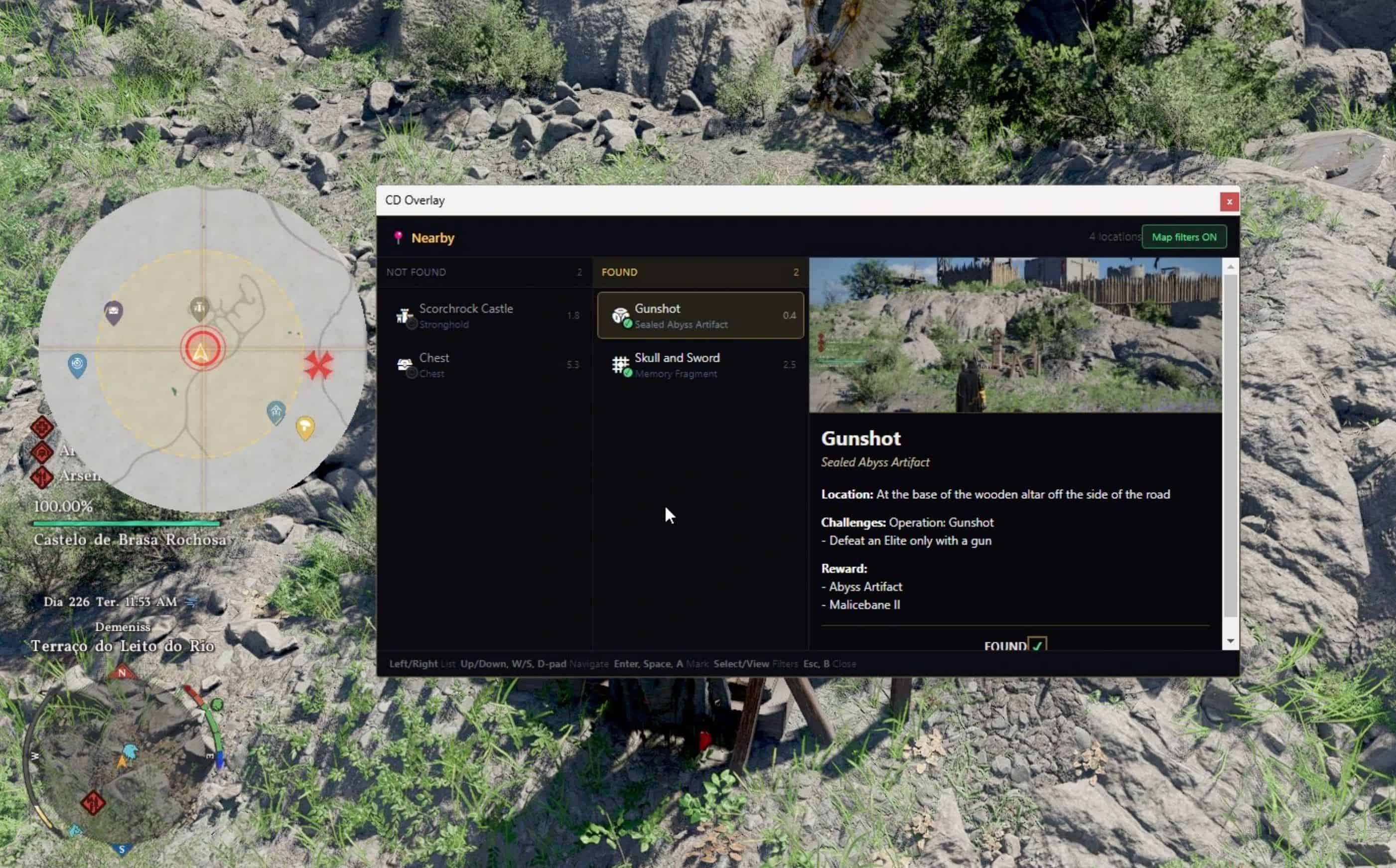
– Optional popup listing MapGenie locations near your current in-game position
– The list refreshes while you move, so it stays useful during exploration
– Enable nearby shortcuts in settings: Shift+N or LB+Downpad opens the popup
– Navigate with W/S, arrow keys, or D-pad
– Mark or unmark locations with Space, Enter, or A
– Close with Esc or B; focus returns to Crimson Desert automatically
– Marking syncs to all connected clients in real time without bouncing back into the overlay that triggered it
Waypoints
Save personal waypoints by name and teleport back to them at any time
Filter, rename, and delete waypoints from the in-overlay panel
Waypoints are saved locally and persist between sessions
Map rotation
– Rotate the MapGenie map to match your in-game camera direction
– Or rotate based on your character’s facing direction
– The directional arrow adjusts automatically to stay accurate in both modes
Location sync
– Mark or unmark locations on MapGenie and the change syncs to all connected clients in real time
– Works between the overlay and the Chrome extension on different devices
Overlay window
– Always-on-top, frameless, resizable from any edge or corner
– Circular/oval mode with compact floating controls
– Adjustable transparency (0-90%)
– Follows the game window automatically (optional)
– Global hotkey: Ctrl+Shift+M to show/hide
Chrome extension (optional)
– Chrome extension lets you use MapGenie in your browser instead of the overlay window. Download the zip, unzip it, and load via chrome://extensions with Developer Mode on
– The companion (CD_Companion.exe) must still be running in the background — it acts as the local server that feeds data to the extension. The overlay window can be hidden with Ctrl+Shift+M if you prefer to only use the browser
How it works
CD Companion reads your character’s position directly from the game’s process memory using AOB pattern scanning and code cave injection. No game files are modified. The position data is broadcast over a local WebSocket, and the overlay (or browser extension) displays it on MapGenie.
Everything runs as a single process with one visible window. No console windows, no separate server to manage.
Installation
– Download CD_Companion.exe from the Files tab.
– Place it anywhere outside the game folder.
– Right-click the exe and select Run as Administrator.
– Open Crimson Desert. The tool attaches to the game automatically.
– The overlay appears as a small always-on-top window showing your position on the map.
No Python installation required. The exe is fully self-contained.
Important notes
– Must run as Administrator — required for reading process memory.
– Antivirus false positive: Some antivirus programs (Windows Defender, etc.) may flag CD_Companion.exe as suspicious. This is a false positive. The tool uses AOB pattern scanning and code cave injection to read and write game memory. Techniques that heuristic scanners flag by design, even when the software is benign. No network traffic leaves your machine except to MapGenie (your browser). If flagged, add the exe to your antivirus exclusion list.
– Teleport uses a physics delta hook. It does not bypass anti-cheat, but use at your own risk in online sessions.
– Mod compatibility: The companion injects hooks into game memory. When another ASI mod hooks the same movement/physics location (such as OpenFlight — thanks to sm1ly/Middle for open-sourcing it), the companion now tries to detect the existing hook and chain through it so both mods can work together. For other conflicts, try disabling teleport in the companion settings — this prevents the physics and invulnerability hooks from being injected. Restart the game and companion after changing the setting.
– Memory patterns are found at runtime via AOB scan and may break after game patches. Updated releases will be posted as soon as possible after each patch.
– This tool does not modify any game files.
– Logs are written to cd_server.log in the same folder as the exe.
Requirements
– Windows 10 or 11
– Administrator privileges
– CrimsonDesert.exe running (the tool waits for it automatically)
– Internet connection (for MapGenie)
FAQ
Do I need Python installed?
No. CD_Companion.exe is self-contained. Python is only needed if you want to run from source.
Why does it need Administrator?
The tool reads live data from the game’s process memory. Windows requires elevated privileges for this.
The marker stopped updating after a game patch.
Game patches can move the memory addresses the tool relies on. Check back for an updated release. It usually takes a few days.
Can I undo a teleport?
Yes. Press Shift+F5 or click the Abort button to return to your previous position.
Where are my waypoints saved?
Locally at %LOCALAPPDATA%\CD_Teleport\cd_overlay_waypoints.json. They are never uploaded anywhere.
Does this work in the Abyss?
Yes. The tool detects which realm you are in and uses separate coordinate calibrations for Pywel and Abyss.
Can I use this on a second monitor?
Yes. The Chrome extension lets you run the map on a second monitor without the overlay.
The companion conflicts with another mod I use.
The latest version includes a hook-chaining adjustment that should improve compatibility with flight mods and other ASI mods touching the same movement/physics hook. If you still run into conflicts, try disabling teleport in the companion settings. This prevents the physics and invulnerability hooks from being injected. Restart the game and companion after changing this setting.