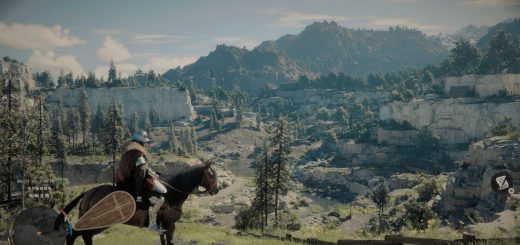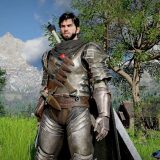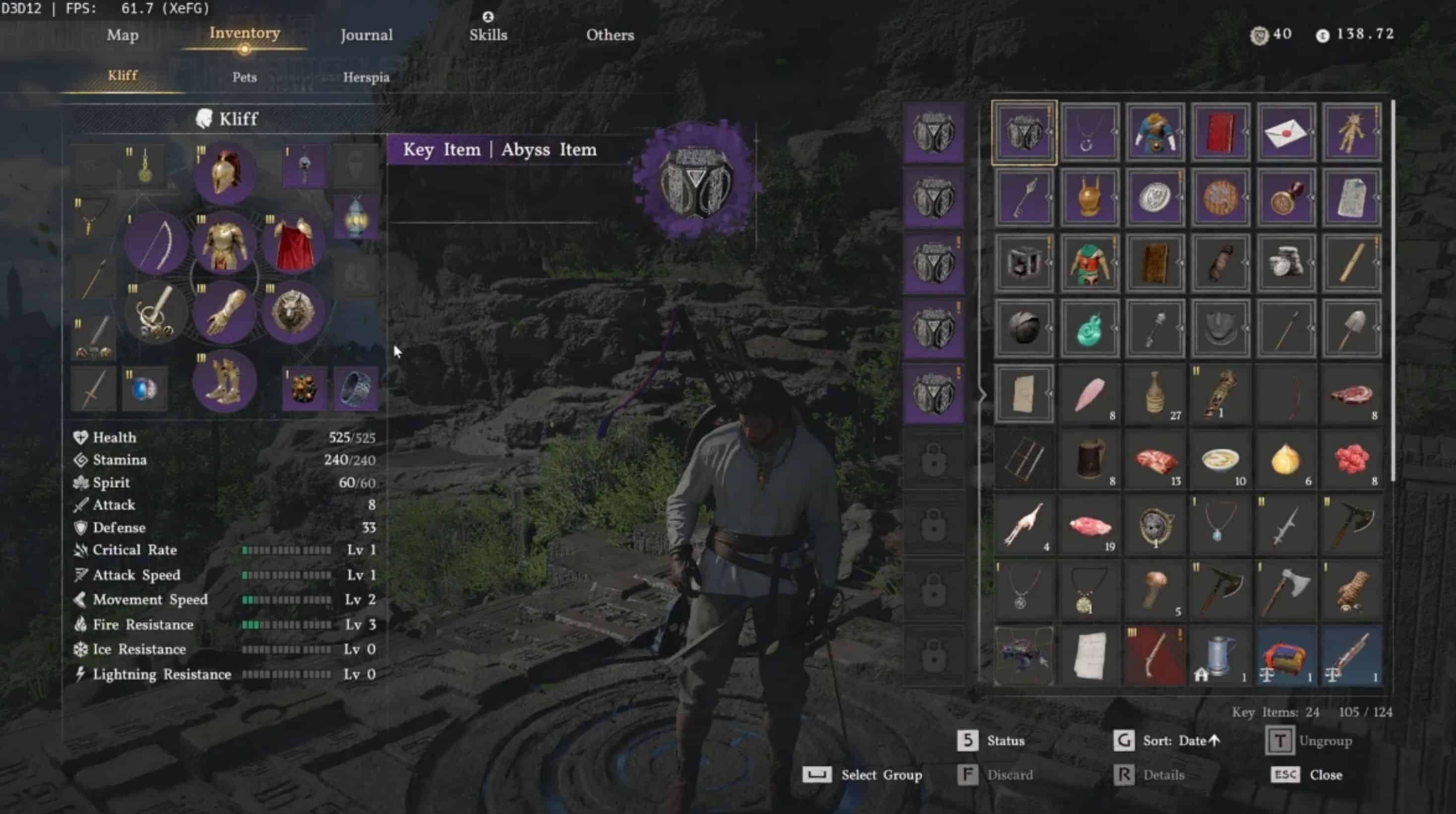
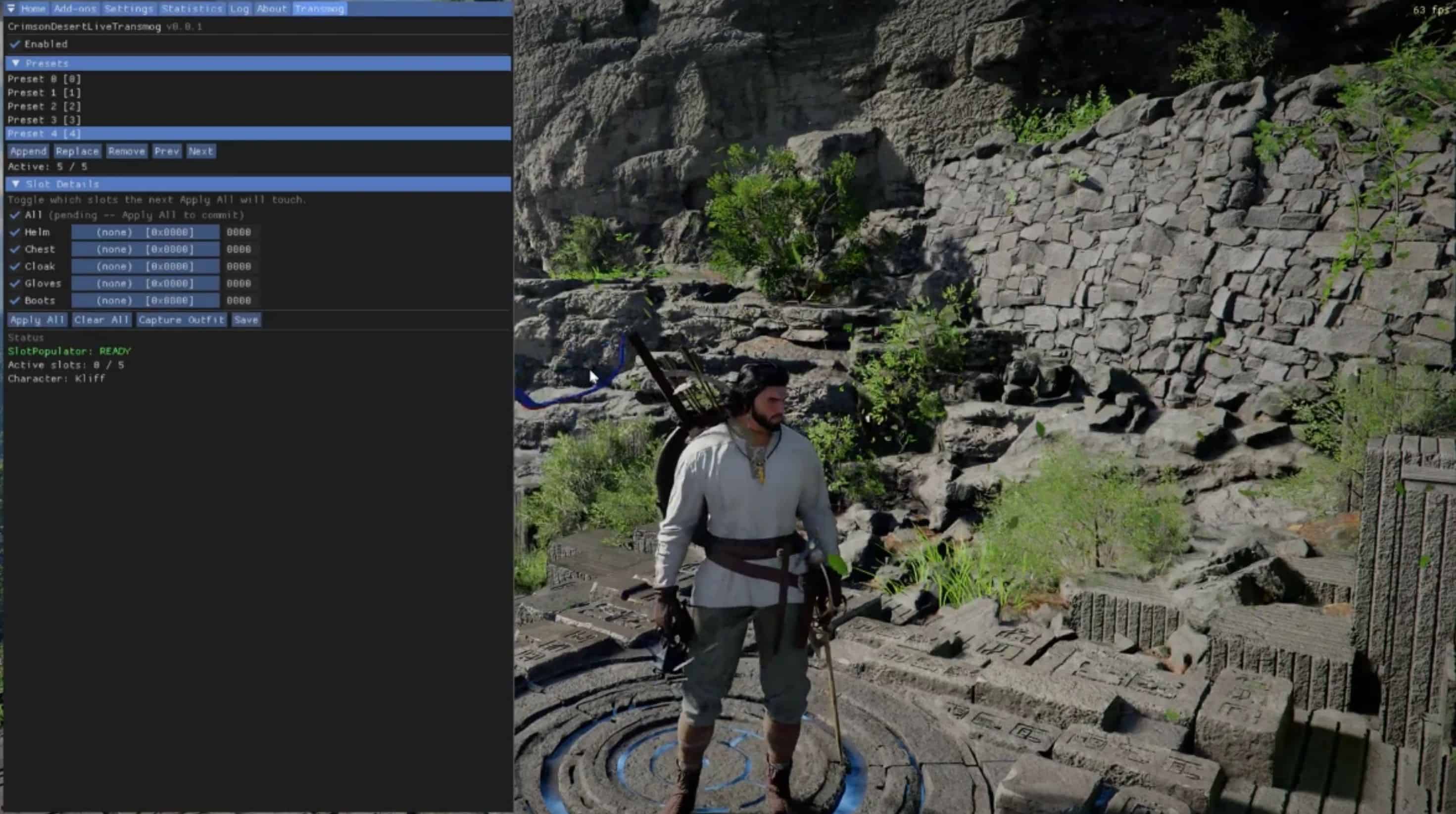
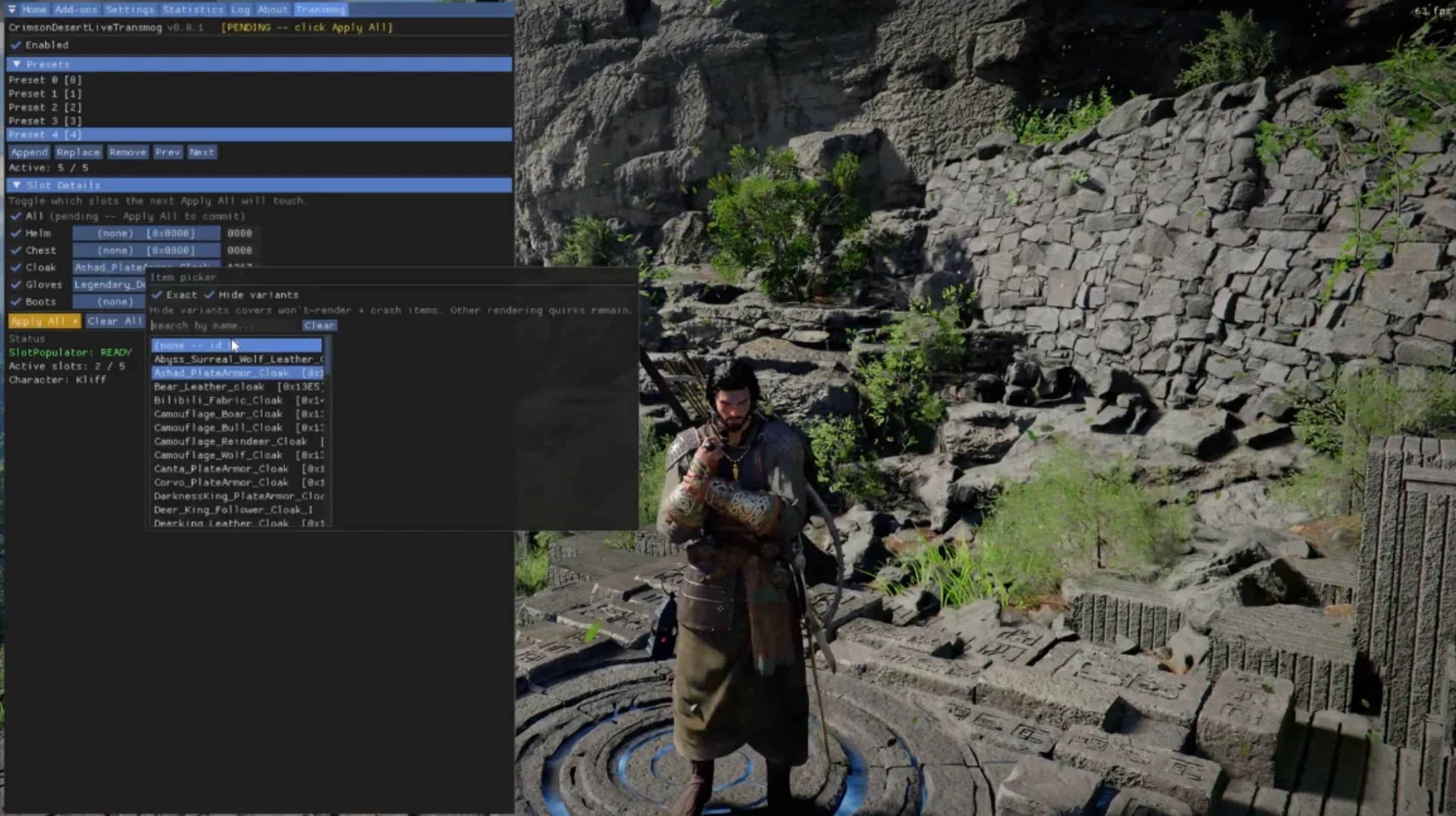
This mod lets you change the visual appearance of your equipped armor in real time without affecting stats. Browse the full item catalog through an in-game GUI, pick the armor you want to see, and apply – no game restart, no file editing required. Build and save presets to quickly swap between your favorite looks.
This mod is in BETA -edge cases may exist. Use at your own risk. Please report any issues you find! Supports Kliff, Damiane, and Oongka. Presets are stored per character and the active preset swaps automatically when you switch who you control in-game.
Requirements:
– Ultimate ASI Loader
Key Features
– Built-in overlay -no external tools required. Press Home to toggle the overlay
– In-game item browser -searchable dropdown auto-categorized by slot (helm, chest, cloak, gloves, boots, necklace, lantern, glasses, mask, backpack)
– Body-mesh prefab picker -optional per-slot prefab swap for users who want to mix and match individual mesh variants beyond what the item picker exposes
– Preset system -save, load, rename, and cycle through multiple transmog presets per character
– Multi-character support -independent preset lists for Kliff, Damiane, and Oongka; the active preset swaps automatically when you change who you control
– Body-type filter -hides items whose body type (male/female) does not match the active character so broken meshes stay out of the picker. Per-character override available in the overlay for body-swap mod users
– NPC and damaged variants -NPC armor variants and damaged variants render via automatic carrier swap
– Safety filters -non-player gear (horse tack, pet armor) and wrong-slot items are filtered out by default
– Per-slot control -enable/disable transmog independently for each equipment slot
– Optional hotkeys -all disabled by default; bind any action via INI if you prefer keyboard shortcuts
– Open-source with full transparency
Requirements
– Crimson Desert (Steam version)
– ASI Loader (Ultimate ASI Loader recommended)
– ReShade is optional. If installed, the transmog UI registers as a ReShade addon tab. If not, the mod provides its own standalone overlay window.
DO NOT INSTALL VIA MOD MANAGERS. You can if you want, but don’t file a bug report here if things don’t work.
Mod managers often stage .asi files into their own subfolders. Ultimate ASI Loader scans subdirectories recursively, so the .asi keeps loading even after the manager reports the mod as “disabled” or “uninstalled”. Common symptom: transmog still applies after you think the mod is gone.
Install manually by following the Installation steps below. To uninstall, delete CrimsonDesertLiveTransmog.asi and CrimsonDesertLiveTransmog.ini directly from bin64 (not via the manager). If a manager moved your files into a subfolder like bin64/plugins/ or bin64/backup/, delete them from that subfolder too.
Installation
Step 1 -Install an ASI Loader
You need an ASI Loader to load .asi mods. If you already have one (e.g. from another mod), skip to Step 2.
Download the x64 build of Ultimate ASI Loader and place one of the following DLLs into your bin64 folder:
– winmm.dll -Recommended, works for most setups
– version.dll -alternative if winmm.dll conflicts
– dinput8.dll -another alternative
How to verify: After completing Step 2, launch the game once. If no CrimsonDesertLiveTransmog.log file appears in bin64, the ASI Loader is not loading. Try renaming the DLL to one of the other variants listed above.
Note: If you are using a newer version of Ultimate ASI Loader and the log file is not generated, try the win64 (x64) build from v9.1.0 instead.
Step 2 -Install the mod
– Download the latest release from the Files tab
– Extract ALL of the following into your bin64 folder:
– – CrimsonDesertLiveTransmog.asi -the mod binary
– – CrimsonDesertLiveTransmog.ini -configuration
– – CrimsonDesertLiveTransmog_display_names.tsv -human-readable item names for the picker
Important: the .tsv file must sit next to the .asi. It maps internal item ids to display names shown in the overlay picker. Without it, the picker shows raw ids only.
Step 3 -Launch and play
Launch the game. Press Home to open the transmog overlay and start browsing armor.
File placement
<Crimson Desert>/bin64/
├── CrimsonDesert.exe (Game executable)
├── winmm.dll (ASI Loader)
├── CrimsonDesertLiveTransmog.asi (This mod)
├── CrimsonDesertLiveTransmog.ini (Configuration)
├── CrimsonDesertLiveTransmog_display_names.tsv (Item display names, REQUIRED)
├── CrimsonDesertLiveTransmog_presets.json (Auto-generated preset file)
└── …
Using with ReShade
If ReShade is installed, the mod automatically registers as a ReShade addon. Open the ReShade menu (Home key) and find the Transmog tab. No extra setup is needed.
If you prefer the standalone overlay window instead of the ReShade tab, set ForceStandaloneOverlay = true in the INI. Both the ReShade tab and the standalone window will be available.
Using with OptiScaler
If you use OptiScaler for frame generation or upscaling:
– Delete winmm.dll (or whichever ASI Loader DLL you placed) from bin64. OptiScaler will handle mod loading instead
– Open OptiScaler.ini, find the [Plugins] section, and set LoadAsiPlugins = true
– Create a plugins folder inside bin64
– Move CrimsonDesertLiveTransmog.asi and CrimsonDesertLiveTransmog.ini into the plugins folder
<Crimson Desert>/bin64/
├── CrimsonDesert.exe
├── OptiScaler.ini (LoadAsiPlugins = true)
├── dxgi.dll (OptiScaler)
├── plugins/
│ ├── CrimsonDesertLiveTransmog.asi
│ ├── CrimsonDesertLiveTransmog.ini
│ ├── CrimsonDesertLiveTransmog_display_names.tsv (REQUIRED, keep next to the .asi)
│ └── … (Other ASI mods go here too)
└── …
If you run into issues, check the OptiScaler documentation for DLL naming and compatibility options.
Note: This applies to any ASI mod, not just this one. If you have other .asi mods, move them into the plugins folder as well.
How to Use
In-game overlay
– Press Home to open the transmog overlay
– In Slot Details, click the picker button next to a slot (e.g. Helm) to browse available armor
– Use the search box to filter by name -items are auto-categorized to the correct slot
– Select an item -changes stay pending until you click Apply All
– Click Apply All to commit all slot changes at once
– Use Append in the Presets section to create a fresh preset with every slot ticked and set to (none) — a hide-all starting point you can fill in from the pickers
– Use Copy to duplicate the current preset (including any unsaved picker edits) into a new slot you can tweak without touching the source
– Save commits unsaved picker edits back into the active preset. The button turns orange with a * marker and a [UNSAVED — click Save] banner appears in the header whenever your edits differ from the stored preset
– Use Prev / Next to cycle through saved presets
– Press Home again to close the overlay
Tip: Enable Instant Apply in the overlay to preview items on hover without needing to click Apply All.
Without the overlay (online Preset Builder)
Use the online Preset Builder to create presets from your browser. It mirrors the in-game GUI – browse the full item catalog (auto-loaded for the latest game version), pick armor per slot, save multiple presets, then download the JSON file. The site also has a full searchable/sortable Item Catalog table showing all item IDs, slot categories, and safety flags.
Alternatively, you can edit the JSON manually:
– Launch the game once so the mod generates a default CrimsonDesertLiveTransmog_presets.json
– Close the game and open the JSON file in a text editor
– Each preset contains slot entries with itemName (string identifier). Set active: true and fill in the item name for each slot you want to transmog
– Set hotkeys in the INI (e.g. ApplyHotkey = F5, ClearHotkey = F6, CaptureHotkey = F7) to apply/clear/capture in-game
– Launch the game – the mod loads presets on startup and applies them automatically
Tip: Use Capture to get item names.
Equip the armor you want in-game, then press your Capture hotkey. This snapshots your currently equipped gear into the active preset’s slot mappings. Check CrimsonDesertLiveTransmog_presets.json after – the captured item names will be filled in for each slot. You can then copy these to build other presets manually.
Configuration
Edit CrimsonDesertLiveTransmog.ini for global settings and optional hotkey bindings.
[General]
LogLevel = Info
Enabled = true
; Launch standalone overlay even when ReShade is installed
ForceStandaloneOverlay = false
; Toggle the overlay GUI. Default: Home
OverlayToggleHotkey = Home
; All other hotkeys disabled by default -set via INI if needed
ToggleHotkey =
ApplyHotkey =
ClearHotkey =
CaptureHotkey =
[Presets]
AppendHotkey =
ReplaceHotkey =
RemoveHotkey =
NextHotkey =
PrevHotkey =
Hotkey Format
– Named keys: T, F3, Numpad1, Mouse4, Gamepad_A, etc.
– Modifiers: Ctrl, Shift, Alt (or LCtrl, RCtrl, etc.)
– Multiple combos: T,Gamepad_LB+Gamepad_Y (T alone OR hold LB + press Y)
– Empty value = disabled
See the full list at the Supported Input Names reference.
Known Limitations
– [Experimental] Dye support shipped as a rough POC/MVP, please bear with the UX for now. Note that not every item is dyeable; applying a color to a non-dyeable slot will produce no visual change.
– Helm visibility setting is overridden -the in-game helmet visibility setting is overridden while LT is active. Workaround: set the Helm slot in the LT picker to (none) to hide the helmet.
– Protagonist switch may leave the picker on the previous character -when switching protagonists, the LT picker may continue to show the previous protagonist’s name and presets, and the dropdown may not let you switch. This is a known bug under investigation.
– Silverwolf Leather Armor* and some other armor seems to have combined with cloak. If you apply it and it disappears right afterwards, you should try setting the cloak slot and armor slot to none, save, then reapply the armor again.
– NPC armor variants and damaged variants render via carrier -items tagged (carrier) in the picker use an automatic carrier swap + character-class bypass. Most work; a few may still produce empty slots depending on the item’s internal skeleton bindings.
– Non-humanoid items crash -horse tack, pet armor, and wagon gear crash the mesh binder. The “Safe only” filter hides these by default.
– Wrong-slot or non-equipment items will crash -selecting a chest piece for the helm slot, or picking non-armor items (dog armor, recipes, seeds, etc.) will crash the game. The safety filters prevent this by default -do not disable them unless you know what you’re doing.
– Special effect armor may have visual quirks -armor with particle effects (e.g. Marni Laser Helm) may not render particles correctly. Hair may clip through some helmets.
– Major game updates may break the mod until a new version is released.
– Only tested with the Steam version.
Troubleshooting
If you encounter issues:
– Set LogLevel = Debug in the INI file
– Check the log file in your game directory (CrimsonDesertLiveTransmog.log)
– For memory pattern errors, the mod needs an update for the current game version
– If the log file is not generated after updating to a newer version of Ultimate ASI Loader, try the win64 (x64) build from Ultimate ASI Loader v9.1.0 instead
Important: removing or disabling ASI mods. Ultimate ASI Loader scans subdirectories recursively. Moving an .asi file into a subfolder (e.g. plugins/backup/) does not prevent it from loading. To fully disable an ASI mod, move it outside the game’s root directory entirely, or rename the file extension (e.g. .asi.bak).