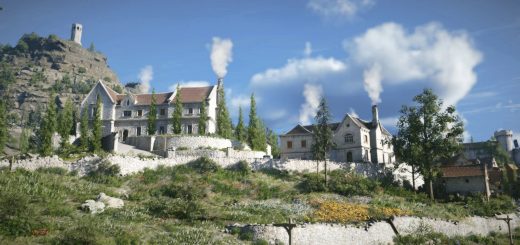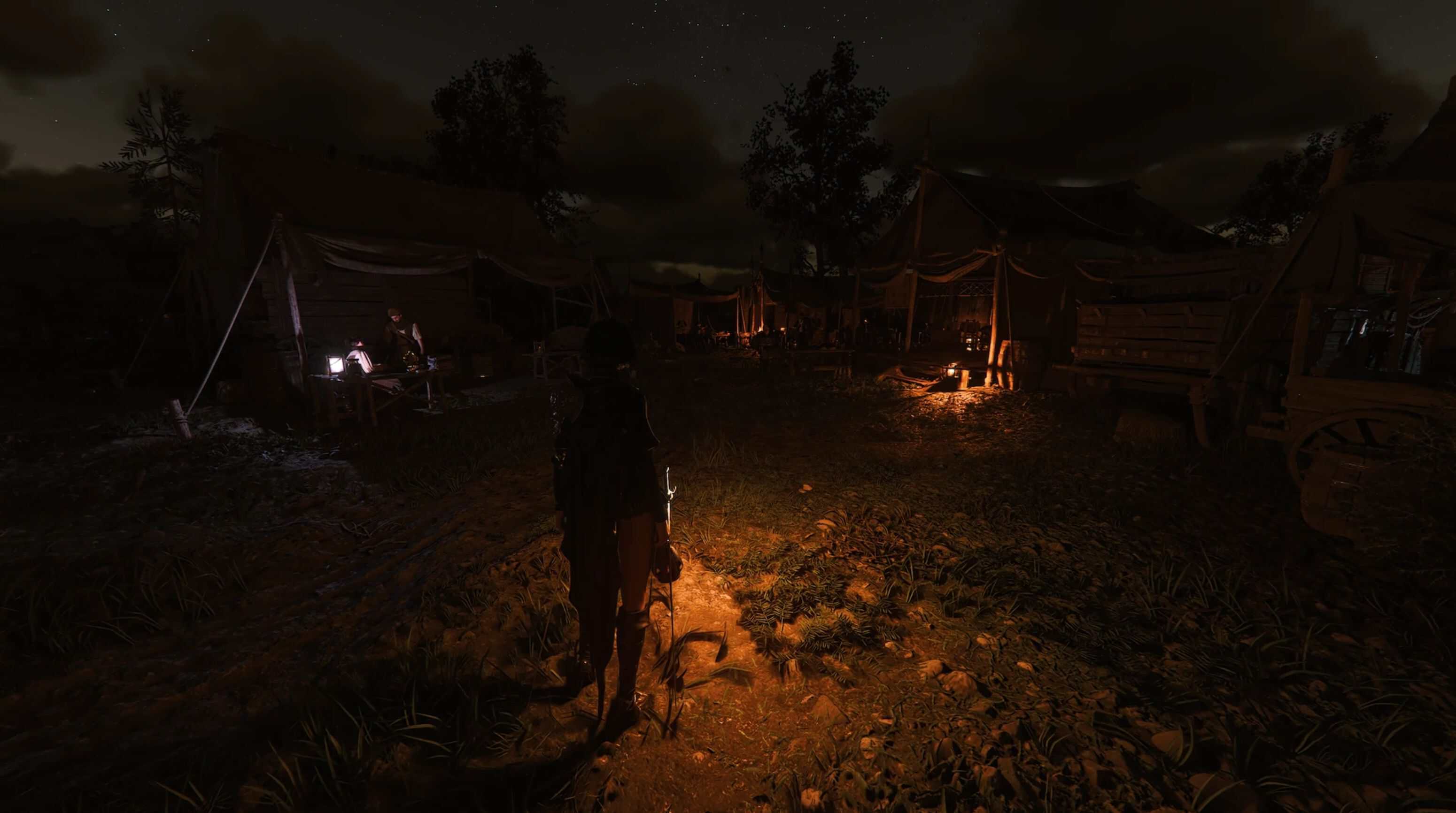
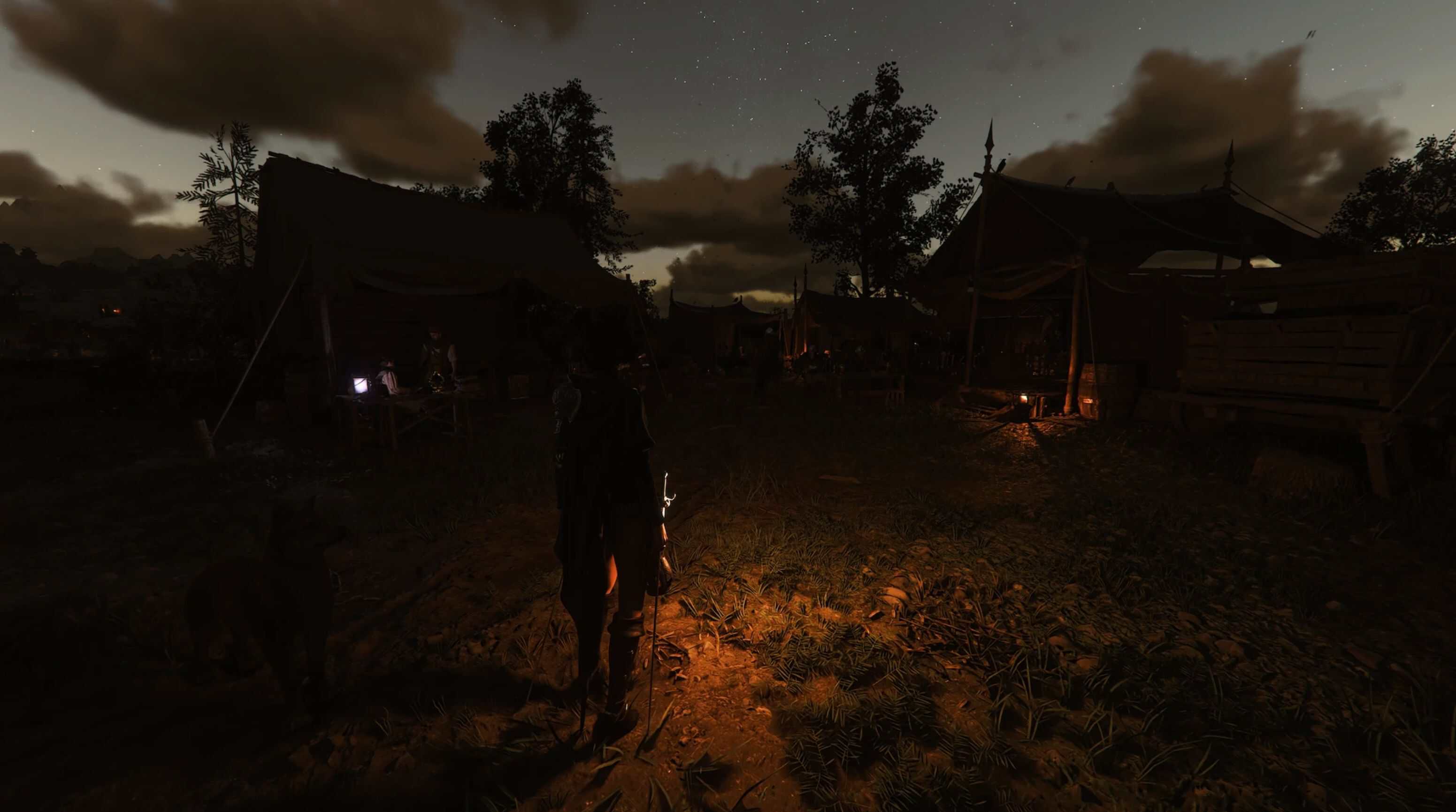
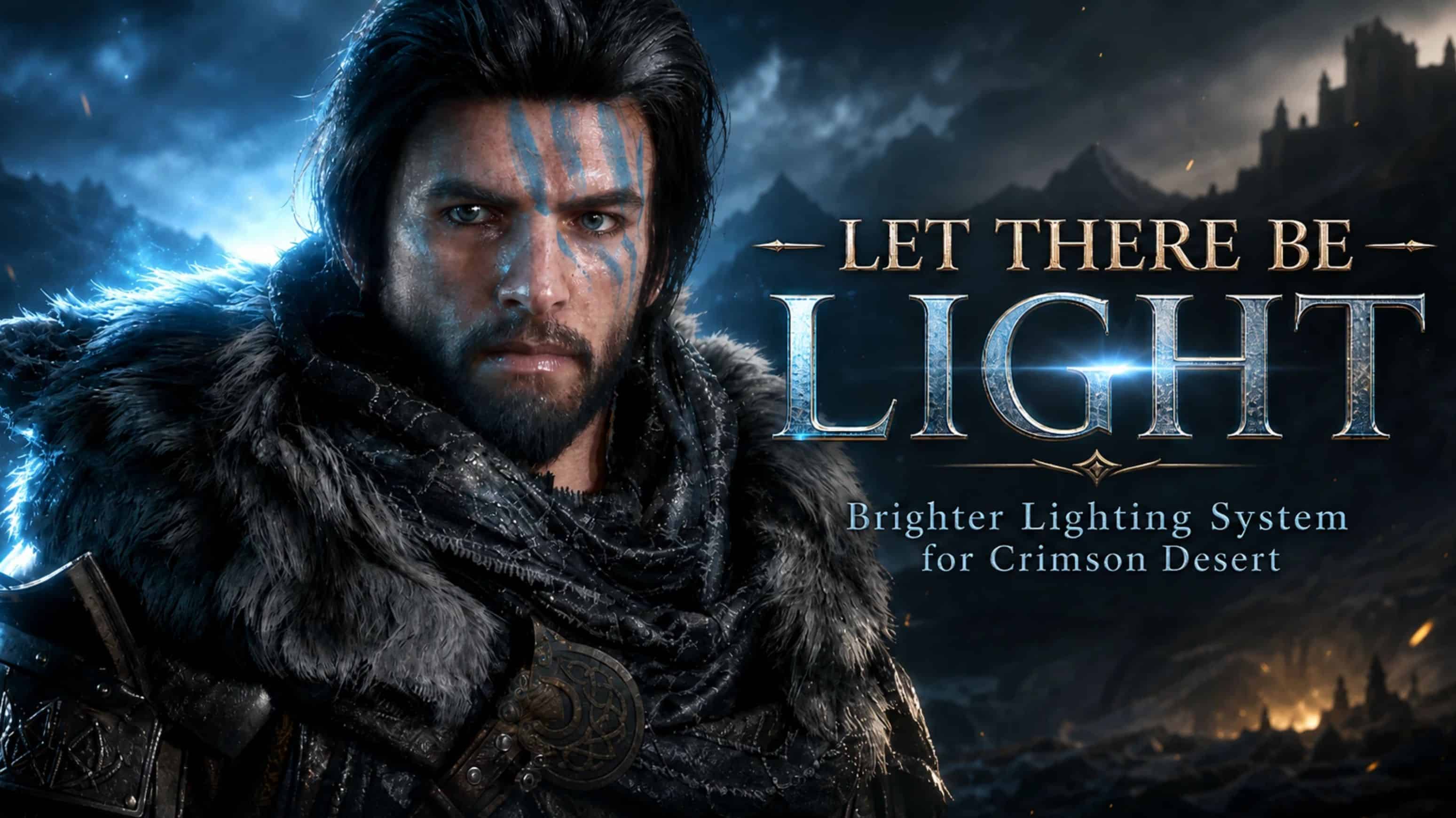
Let There Be Light is a brighter lighting system for Crimson Desert. This mod increases the brightness values used by many of the game’s built in light systems, making moonlight, candles, torches, campfires, street lights, indoor lights, outdoor lights, fire effects, magic effects, and other light sources feel stronger and more useful.
This is best used with RenoDX based setups where vanilla lighting can feel too dim.
What This Mod Changes
– Boosts moonlight by around 2x
– Boosts most artificial lights by around 2x
– Boosts many indoor, outdoor, street, spotlight, magic, aura, LED, lava, lightning, beam, and character light systems by around 2x
– Boosts candles, fire, and campfire lighting roughly 2x to 5x
– Keeps the original color temperatures intact
– Keeps the original AutoExposure settings intact
– Does not add or remove light entries
Edited File
This mod edits: miscellaneous/lightpreset.xml
– No shaders are changed.
– No ReShade preset is included.
– No weather files are edited.
This mod is recommended for:
– Darker night mods
– Darker visual presets
– RenoDX setups
– Players who feel vanilla light sources are too weak
– Players who want stronger environmental lighting without using ReShade
This does not globally brighten every scene. Instead, it increases the values of the game’s existing light systems. The final result depends on which light presets the game uses in each area. Some areas may show a major difference. Some areas may only show a small difference.
JSON Mod Manager Installation
– Download the mod file.
– Extract the folder name Let There Be Light from the ZIP.
– Drag the extracted folder into JSON Mod Manager.
– Enable the mod.
– Place it lower in your load order, especially if using other visual or lighting mods.
Best practice: Extract the Let There Be Light folder first before dragging it into JSON Mod Manager. This helps avoid folder nesting or import issues.
Also reported working with CDUMM.
Bug Zone
If you have weird lighting issues make sure you are not using the photosensitivity option in game, have seen some reports about it turning off lights.
Next step would be to clear your DXCache/GLCache on both AMD/NVIDIA.
Can be located by copying the following into your search bar on windows.
NVIDIA
%LOCALAPPDATA%\NVIDIA\DXCache\
%LOCALAPPDATA%\NVIDIA\GLCache\
AMD
%LOCALAPPDATA%\AMD\DxCache\
%LOCALAPPDATA%\AMD\GLCache\