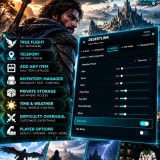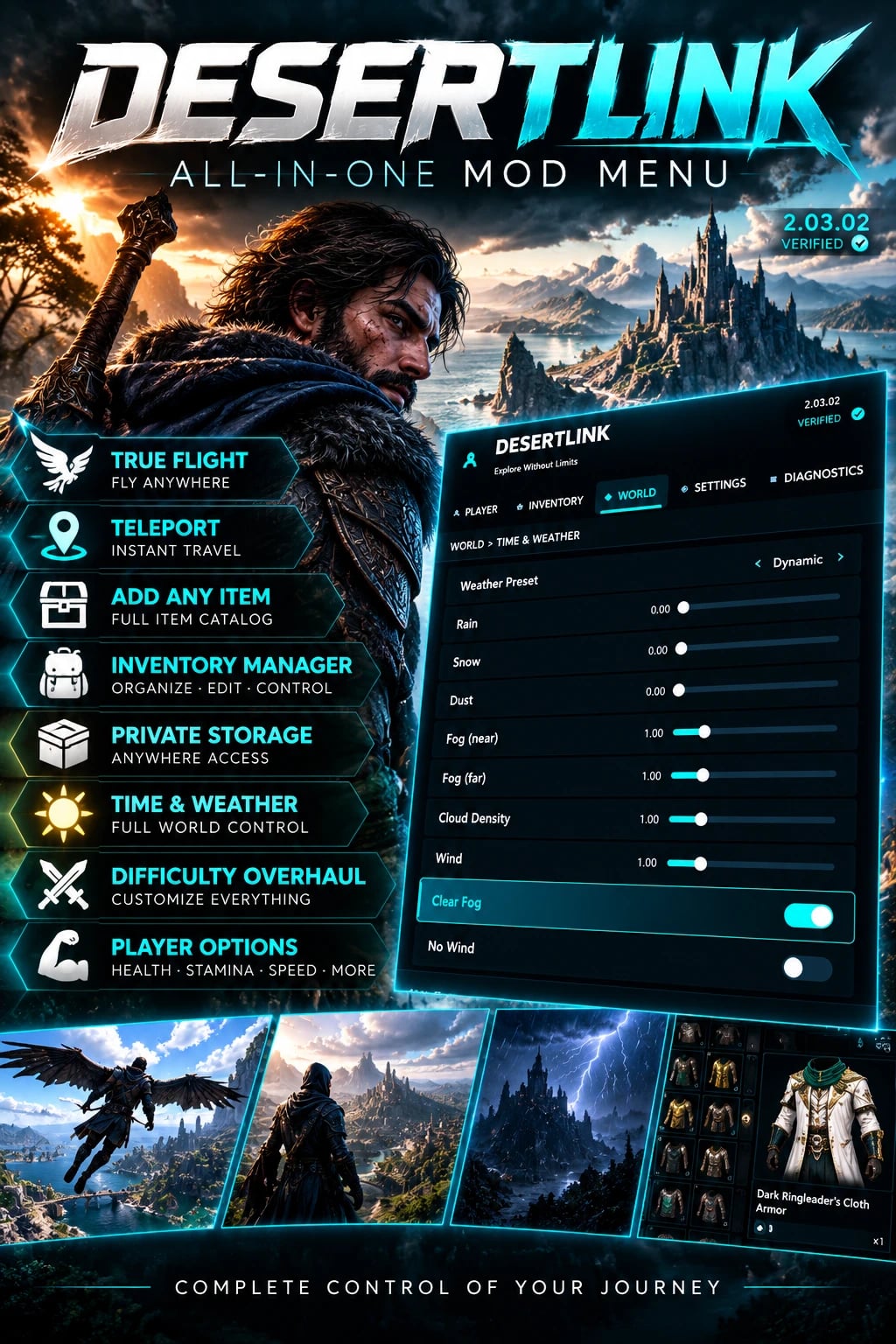
DesertLink Ultimate Mod Menu 4.9 for Crimson Desert 2.03.02 on PC provides runtime player, inventory, world, combat, NPC, teleportation, time, weather, progression, dispatch and configuration features. It supports English and Simplified Chinese, with keyboard, mouse and compatible controller input.
Features
- Persistent mod settings and automatic configuration saving.
- Customizable keyboard and controller shortcuts with a centralized Shortcut Manager.
- Runtime-based Inventory Expansion, Daily Store Refresh, Dispatch Overhaul and Progression Overhaul.
- Built-in Teleport without a separate DesertLink Core ASI or desktop service.
- Expanded True Flight and Flash Mode configuration.
- Advanced Damage Numbers settings.
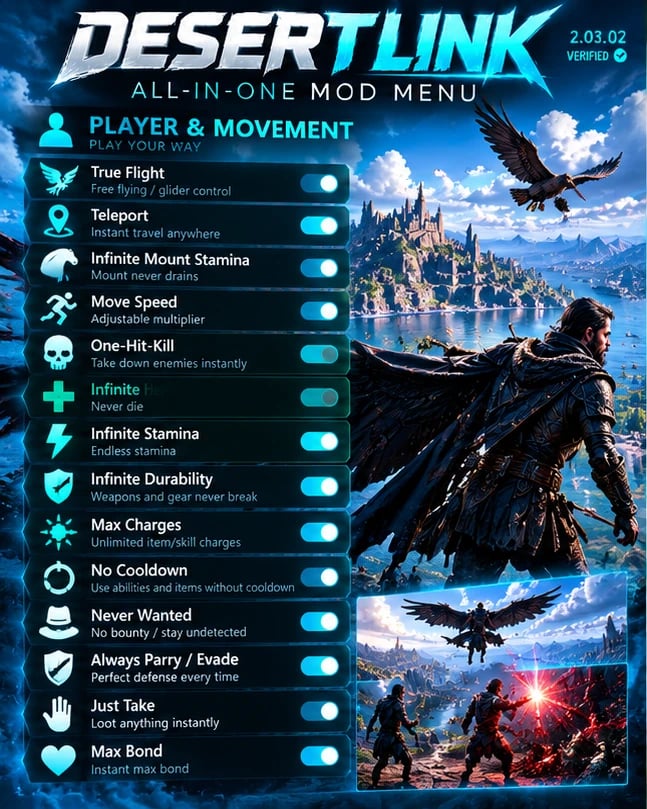
- Player and combat modifications, including health, stamina, Spirit, mount stamina, movement, jumping, damage, durability, charges, cooldowns, wanted status, taking behavior, parry, evade, bond and Ghost Mode.
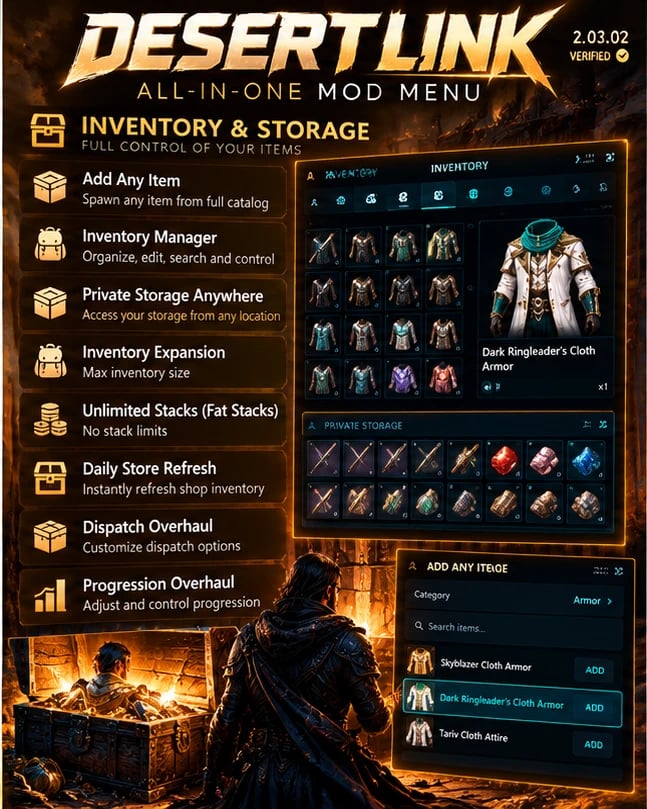
- Inventory management, item searching, item addition, item deletion, recovery, refinement, socket unlocking, storage access, inventory expansion, stack limits and Dye Studio.
- Time, weather, game speed and difficulty controls.
- Instant Base Conquest and Duo Always Win.
- NPC spawning, NPC management, Faction Battles and Random Encounters.
- Runtime module status reporting and failure isolation.
Specifications
- Game: Crimson Desert
- Target build: 2.03.02
- Platform: PC
- Version: 4.9
- Languages: English and Simplified Chinese
- Mod type: ASI / Runtime Mod Menu
- Inventory capacity: 1,440 slots
- Supported NPC catalog: approximately 7,250 character entries
- Supported NPC spawn quantity: whole numbers from 1 to 10 per selection
- Supported progression level limit: up to Level 999
- Daily Store Refresh interval: 1 – 30 in-game days
- Game Speed range: 0.5x – 3x
- Move Speed range: 1x – 10x
- Super Jump strength: 1x – 10x
- Saved waypoints: up to eight
- Required: Compatible ASI Loader
- Teleport Core: Integrated
- Desktop Teleport Service: Not required for built-in Menu Teleport
- DMM datapack: Not required for the four integrated 4.9 runtime features
- Controls: Keyboard, Mouse, Compatible Controllers
Saved settings
Version 4.9 can restore enabled features after the controlled character finishes loading.
- Open DesertLink.
- Navigate to Settings.
- Enable “Restore enabled mods on launch”.
- Activate the supported modifications you want to keep enabled.
- Adjust your preferred settings.
- Save your configuration.
Additional functions include automatic saving of settings, modes, values and shortcuts, a manual “Save settings now” action, preservation of existing INI selections during updates, improved startup initialization, improved handling when changing playable characters, better inventory-feature restoration and protection against activating features before required game systems are ready.
Some runtime features need the world and controlled character to finish loading before they can activate. A saved feature may temporarily wait during loading without losing its saved enabled state. The saved configuration system is separate from Crimson Desert’s normal game-save system.
Shortcut manager
Shortcut management is located at Settings > Shortcuts. Supported actions are organized into PLAYER, INVENTORY, WORLD and MENU sections.
Keyboard bindings can use one or two controls, depending on the action. Independent controller assignments support single-button actions and supported two-button combinations.
- Open Settings.
- Select Shortcuts.
- Choose a category.
- Select the feature or action.
- Choose its keyboard or controller binding.
- Start input capture.
- Press your desired key or control combination.
- Confirm the captured binding.
Use Cancel to leave capture without changing the binding. Use Clear to remove a supported binding.
- Independent keyboard and controller shortcuts.
- Single-control and two-control bindings.
- Duplicate-binding detection.
- Priority for two-control combinations over conflicting single-control actions.
- Controller trigger-threshold adjustment.
- Support for remapped controls.
- Input protection while using text fields and tool panels.
- Improved behavior after controller reconnection and focus changes.
At least one Menu-opening binding must remain assigned so you can always access DesertLink. Saved shortcuts are preserved when updating from an older compatible configuration. Supported Flight, Flash, Teleport, Time, Player and Encounter actions can be configured through this system.
Player and combat
Features can be configured individually rather than forcing a single universal gameplay preset.
Health options include 2x Maximum Health, 5x Maximum Health, 10x Maximum Health and Unlimited Health.
Stamina modes include 2x Slower Consumption, 5x Slower Consumption, 10x Slower Consumption and Unlimited Stamina. Finite modes reduce stamina consumption without changing normal maximum stamina and regeneration behavior.
Unlimited Spirit prevents supported Spirit consumption while active. Infinite Mount Stamina prevents supported mounts from exhausting their stamina and can be enabled before or during mounted exploration. Mount tracking and stamina handling have received compatibility and stability improvements across previous releases.
Move Speed supports 1x – 10x. Super Jump supports adjustable strength from 1x – 10x. The movement backend includes improved initialization and native pattern validation.
One-Hit-Kill defeats supported enemies with a single hit. Infinite Durability protects supported equipment from normal durability loss. Max Charges maintains maximum charges on supported charged items. No Cooldown removes supported item cooldown restrictions.
Never Wanted prevents supported wanted and bounty behavior. Version 4.9 also improves repeated activation and restoration of original game values.
Just Take changes supported take-or-steal interactions so they resolve as ordinary taking behavior. The feature includes improved native-state ownership and restoration handling.
Parry / Evade provides timing modes for Just Guard and Just Evade:
- Vanilla, original timing behavior.
- Extended, more forgiving timing.
- Generous, a wider timing opportunity.
- Ultra, extremely forgiving timing.
- Always, the most permissive supported mode.
A separate secondary timing-range option is also available.
Max Bond maintains maximum supported bond values for compatible NPCs, pets and mounts. Ghost Mode is designed to prevent normal enemy detection when approaching enemies, attacking nearby targets or moving through hostile locations. Activating Ghost Mode during combat can also cause enemies to lose their existing awareness of the player. Disable Ghost Mode to restore normal supported detection behavior.
True Flight
True Flight provides controllable powered movement through the game world, including hovering, ascending, descending, forward thrust, movement control, rolling, adjustable gravity assistance, automatic engagement behavior, landing and re-engagement, and controller vibration.
Automatic hover activation is based on the game’s actual opened-glider state. Ordinary jumping and free fall are not treated as automatic hover activation by themselves. Open the glider for supported automatic engagement or use the configured manual Flight shortcut. Automatic behavior depends on the activation mode selected in True Flight settings.
Flight actions can be assigned at Settings > Shortcuts > Player > True Flight.
Original reference controls:
- Manual Flight Toggle: Keyboard F, Controller LB
- Ascend: Keyboard Caps Lock, Controller RB
- Descend: Keyboard Left Ctrl, Controller RT
- Forward Thrust: Keyboard V, Controller A
- Roll: Keyboard Left Alt, Controller B
- Cancel Flight: Keyboard Space, Controller X
Actual bindings in 4.9 depend on the current configuration and may differ if customized or restored. Check Settings > Shortcuts for active controls.
True Flight settings include Hover Activation Mode, Automatic Engagement Timing, Automatic Release Timing, Descent Requirement, Landing Behavior, Hover Gravity / Gravity Assistance, Ascend & Descend Strength, Lift Ramp, Thrust Strength, Thrust Ramp, Max Thrust, Speed Scale, Roll Settings, Flight Limits and Controller Rumble.
- Automatic hover is based on an opened glider, not ordinary free fall.
- Manual Flight controls remain available.
- Landing releases the active flight state.
- Glider folding and cancellation release the flight session.
- A later glider activation can engage flight again.
- Super Jump remains available when Flight is enabled but not actively engaged.
Start with moderate settings and become familiar with the controls before increasing movement speed.
Flash Mode
- Open the Player category.
- Locate Flash Mode.
- Enable the supported feature.
- Open the Flash settings page.
- Configure the preferred effects and behavior.
- Check Settings > Shortcuts for the active Flash actions.
Available configuration includes transition behavior, sound settings, sound volume, screen pulse, notifications, lightning effects, camera effects, controller input enablement and controller trigger thresholds.
The previous default Flash controller shortcut used RT + D-Pad Right. Version 4.9 retains fresh-install defaults where applicable while supporting customizable shortcuts. Check Settings > Shortcuts for the current binding. Flash also retains its separate controller enable and trigger-threshold options.
Damage Numbers
Damage Numbers displays damage values during combat. Available settings include number size, duration, rise, horizontal spread, vertical spread and Hide Player Damage.
Turning the feature OFF clears its displayed damage numbers. Turning it back ON displays newly generated supported damage values.
Inventory tools
Add Any Item provides a supported Crimson Desert item catalog with item search, category filtering, item names, internal item identifiers, item artwork and previews where available, quantity selection, direct item addition and a Saved Collection for favorite items.
Use the Saved Collection to access frequently used items without searching again.
Inventory Manager provides current-inventory search, category filters, inventory bucket navigation, item details and artwork, quantity editing, individual item deletion, bulk item actions and Recently Deleted recovery.
Select multiple entries and process them through the bulk-action workflow. Previous controls included X / Square on compatible controllers or Tab on keyboard for item selection. Check the current interface for applicable prompts.
Recently Deleted recovers supported deleted inventory entries. Open Recently Deleted and use the available recovery action. Version 4.9 improves recovery-file persistence, history replacement checks and migration of older recovery data. Inventory recovery is intended for supported Menu-managed deletions, not as a replacement for normal game-save backups.
Max Refine All (+10) applies maximum supported refinement to compatible equipped gear. Only supported equipped items are processed.
Unlock All Sockets unlocks supported sockets on equipped gear. Existing installed Abyss Gems are preserved by the supported operation.
- Equip the relevant gear.
- Open the equipment action.
- Select Unlock All Sockets.
The Menu provides feedback for supported queued or completed actions.
Private Storage Anywhere opens supported storage interfaces without travelling to their physical locations. Supported storage types include:
- Private Storage
- Gatherables Chest
- Wardrobe
- Kuku Cooler
- Collectibles Chest
- Camp Straw
- Bird Feed
- Town Warehouse
- Abyss Gear Storage
Storage availability may depend on the current character and game state.
Inventory expansion
Inventory Expansion is runtime-based in Version 4.9 and does not use the old datapack installation workflow.
- Backpack: 1,440 slots
- Kuku inventory: 1,440 slots
- Supported storage rows: 1,440 base capacity
The system preserves supported additional capacity legitimately earned through gameplay.
- Open Inventory > Inventory Expansion.
- Enable the feature.
- Allow the controlled character and inventory systems to initialize.
- Open the relevant inventory or storage interface.
No DMM application is required for the 4.9 Menu feature. Capacity updates are handled through the runtime system.
DesertLink validates the active character and inventory ownership before modifying supported capacity. When disabling or restoring normal capacity, the Menu may defer the reduction if additional inventory slots are still occupied. This helps avoid applying a smaller capacity while items still occupy the expanded area. Version 4.9 also improves client/server inventory ownership checks and saved activation-state restoration.
Unlimited Stacks
Unlimited Stacks increases supported stack limits for stackable items. It was previously documented as intentionally starting disabled each session. Check its current state after launch rather than assuming it was restored with other features.
Dye Studio
Dye Studio is available inside the Inventory category for supported equipment.
- Equipped-item browsing
- Inventory-item browsing
- Dye-zone selection
- Color picker
- RGB color adjustment
- Color presets
- Apply Dye
- Remove Dye
- Undo Last Dye
- Save Dye Profile
- Load Dye Profile
- Delete Dye Profile
- Open Inventory > Dye Studio.
- Select an equipped or inventory item.
- Choose the supported dye zone.
- Pick a color or enter RGB values.
- Select Apply Dye.
Use Remove Dye to remove a supported application. Use Undo Last Dye to revert the most recent supported operation. Save favorite configurations as Dye Profiles and load them again whenever needed.
Dye Studio also interacts with DesertLink’s supported equipment dye-restriction unlock feature. The panel can be repositioned using its header with the mouse or supported controller panel controls.
Teleport
Version 4.9 integrates the Teleport backend directly into the Menu ASI. The built-in Menu Teleport does not require the old DesertLink Core ASI or desktop companion service.
- Open the normal Crimson Desert world map.
- Place a waypoint marker at the desired destination.
- Return to gameplay.
- Open World > Teleport.
- Check the detected waypoint.
- Select the Teleport action.
A supported Teleport shortcut can also be assigned in Settings > Shortcuts. The Menu uses the current detected map marker instead of relying on an outdated previous marker.
Destination Height configures the arrival height above the destination. The previous default was 700; use the current 4.9 page value as the authoritative setting. A higher arrival offset can be helpful in difficult terrain.
You can save up to eight personal waypoint locations. Supported actions include saving the current position, teleporting to a saved position, renaming a saved waypoint and deleting a saved waypoint. New saved positions use absolute world coordinates. Existing saved waypoint entries from older INI configurations are retained.
Version 4.9 displays the most recent request result. Possible statuses are Queued, Applied and Expired. If a requested move cannot safely be applied, check this field and the relevant module status.
Teleport is linked to the currently controlled character and its valid movement state. Changing characters or game state during a request can invalidate that request. This is intentional safety behavior. The built-in Teleport backend no longer relies on the old internal pipe round trip or external desktop service.
Time and weather
Available time actions include:
- Set Exact Hour
- Morning
- Noon
- Evening
- Night
- Advance +1 Hour
- Advance +6 Hours
- Advance +12 Hours
- Advance +1 Day
- Freeze Time
- Open World > Time & Weather.
- Choose a preset or exact hour.
- Apply the desired time adjustment.
The Menu uses the current derived in-game clock instead of an outdated base-calendar snapshot. Time changes preserve supported day rollover and the game’s time-rate information.
Freeze Time stops the current game clock at its present value. When Freeze Time is released, normal progression resumes from the held time. The system includes improved synchronization between calendar changes and the game’s timer update phase.
Game Speed adjusts supported world simulation speed. The previous supported range was 0.5x – 3x. Game Speed is separate from character Move Speed.
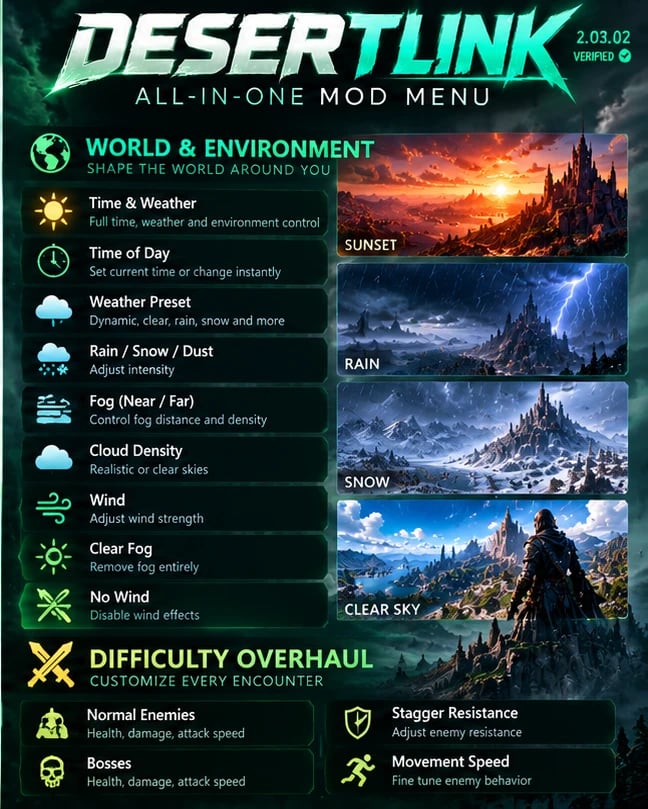
Weather presets include Dynamic, Clear, Overcast, Rain, Storm and Fog.
Manual environment controls include Rain, Snow, Dust, Near Fog, Far Fog, Cloud Density, Wind, Clear Fog and No Wind.
Choose a preset for a quick environmental change or adjust supported individual values for more control. Return to Dynamic to use the game’s normal dynamic weather behavior.
Difficulty Overhaul
DesertLink provides separate configuration for Normal Enemies and Bosses. Supported combat statistics have independent enable controls and multipliers.
- Open World > Difficulty Overhaul.
- Choose Normal Enemies or Bosses.
- Select the supported statistic to modify.
- Enable that individual setting.
- Adjust its multiplier.
Disabled individual options retain the game’s original values for those statistics. You can modify only the parts of combat difficulty you want without applying one universal multiplier to everything.
Instant Base Conquest
- Open the World category.
- Locate Instant Base Conquest.
- Enable or use its supported action.
Its existing fresh-install shortcut defaults are retained in Version 4.9. Open Settings > Shortcuts to inspect or customize the current binding.
Duo Always Win
Duo Always Win modifies new supported two-card Duo deals to provide the strongest pair for that deal.
- Open World > Duo Always Win.
- Enable the feature.
- Join a Duo table.
- Begin a new round.
- Allow the game to deal both cards.
You can continue using normal betting actions.
- The feature applies to supported newly dealt hands.
- Folding still forfeits the round.
- Manually exchanging cards changes the hand.
- The feature has a saved toggle.
- A custom shortcut can be assigned.
This feature is managed directly from the World category.
Daily Store Refresh
Daily Store Refresh uses live runtime controls and does not require DMM datapack installation.
Supported restock intervals range from 1 – 30 in-game days.
- Open the Daily Store Refresh feature in the World controls.
- Enable the runtime feature.
- Select the desired restock interval.
- Continue playing.
The feature no longer relies on the previous Menu datapack application workflow. The feature page also displays runtime availability and relevant stopped-session state.
Dispatch Overhaul
No data mod installation is required for this integrated feature.
Available settings include:
- One-worker mission support
- Worker skill requirements
- Material cost percentage
- Maximum mission hours
- Worker reward multiplier
- Open Dispatch Overhaul.
- Enable the runtime module.
- Configure the desired mission requirements.
- Adjust costs, duration and rewards.
- Return to the game and use the supported dispatch system.
Each setting is applied through the feature’s supported runtime controls. Module availability is reported directly in the Menu.
Progression Overhaul
Available settings include:
- Skill Point XP Multiplier
- Contribution XP Multiplier
- Religion XP Multiplier
- Optional Skill Level Limit
- Optional Contribution Level Limit
- Optional Religion Level Limit
Supported level limits can be configured up to Level 999.
- Open Progression Overhaul.
- Enable the runtime feature.
- Adjust the XP multipliers individually.
- Enable the level-limit controls you want to use.
- Set the desired supported limits.
Each supported level limit has its own enable control. This allows selected progression systems to be modified without necessarily changing the others. No DMM restart-to-apply workflow is required for the integrated 4.9 runtime controls.
NPC spawning
The integrated NPC catalog contains approximately 7,250 character entries.
Categories include:
- Bosses
- Enemies
- Allies
- Neutral characters
- Pets
- Animals
- Mounts
NPC Browser features include a searchable catalog, category filters, faction and family filters, character portraits where available, character name and identifier cards, spawn distance settings, faction selection, spawn quantity selection, favorites, recent spawns, and random boss and enemy actions.
- Open World > Spawn Any NPC.
- Search for a character or browse a category.
- Select the desired NPC.
- Choose the supported faction behavior.
- Set the quantity and spawn distance.
- Use the Spawn action.
Supported spawn quantities include whole numbers from 1 to 10 per selection, subject to the shared NPC limit and available runtime capabilities.
Supported owned-NPC management actions include Teleport NPC to Player, Duplicate NPC, Despawn Selected NPC, Despawn All Owned NPCs, Invincibility, Health Multipliers, Damage Multipliers, Recruitment for supported companions, Follow and Stay.
Open the Spawned NPC list, select an owned entry and choose a supported action. The active spawned-NPC count updates as tracked NPCs are removed.
Faction Battles
Faction Battles are integrated into the Spawn Any NPC panel.
- Open World > Spawn Any NPC.
- Navigate to Faction Battles.
- Select the first team.
- Add the desired NPC types.
- Configure their quantities.
- Select the opposing team.
- Configure its NPC types and quantities.
- Start the supported battle-spawning action.
Each team can include multiple different character types.
Supported team-entry removal controls include the X button on the NPC card, Controller Y and Keyboard Delete. The shared NPC limit applies to both existing and pending spawned NPCs. Version 4.9 improves availability checks and native replacement handling for the underlying NPC systems.
Random Encounters
Supported encounter options include:
- Boss encounters
- Enemy group encounters
- Wildlife encounters
- Discovered-enemies-only selection
- Minimum encounter interval
- Maximum encounter interval
- Minimum spawn distance
- Maximum spawn distance
- Closer encounter probability
- Maximum encounter NPC count
- NPC lifetime
- Cleanup distance
Previous default encounter intervals were randomly selected between 2 and 4 minutes.
- Open World > Random Encounters.
- Enable the encounter system.
- Choose the types of encounters you want.
- Adjust timing and spawn distance.
- Configure population and cleanup behavior.
- Return to gameplay.
Use the supported encounter cleanup action to remove random encounter NPCs without intentionally deleting separately managed manual spawns.
Manual NPC spawning and ordinary owned-NPC editing are evaluated separately from encounter-specific terrain and safe-area dependencies. Unavailable encounter helpers do not automatically disable unrelated supported manual NPC operations. The Menu also provides clearer encounter-specific availability information.
Settings and configuration
Settings include interface themes, accent colors, UI scaling, HDR color correction, brightness adjustments, Restore enabled mods on launch, Save settings now, centralized keyboard shortcuts, centralized controller shortcuts, controller trigger thresholds and supported feature-specific customization.
The Menu’s existing collection includes 14 themes following the addition of Violet, Sunset, Rose, Lime, Royal Blue and Teal in earlier versions.
The previously documented UI Scale range was 0.85x – 1.75x. HDR correction was previously OFF by default.
Gameplay shortcuts are suspended while the Menu, a supported tool panel or an active text-capture interface is using input. This helps prevent accidental gameplay actions while configuring DesertLink.
Mod status and diagnostics
Crimson Desert updates may change internal game systems. DesertLink evaluates supported modules independently instead of assuming every function remains compatible.
Depending on the module and its state, statuses may include:
- WORKING, a supported module is initialized.
- WAITING, required game initialization is incomplete.
- NEEDS UPDATE, a required internal game component has changed.
- FAILED / UNAVAILABLE, the module could not safely initialize or operate.
Some modules also report callback availability or stopped-session state.
An unavailable individual feature does not necessarily mean the entire Mod Menu has failed.
Version 4.9 adds improved isolation for module initialization failures, feature-toggle failures, frame processing failures, Runtime Store callbacks, Progression callbacks and Dispatch callbacks. The Menu also improves coexistence with supported overlays, input hooks and existing detours.
When a required game component cannot be safely validated, the affected operation can remain unavailable instead of applying an uncertain modification.
Installation
Supported game version: Crimson Desert 2.03.02.
Requirements:
- Crimson Desert on PC.
- A compatible ASI loader.
- DesertLink Ultimate Mod Menu 4.9.
- Close Crimson Desert completely.
- Make sure your ASI loader is installed.
- Open Steam.
- Right-click Crimson Desert.
- Select Manage > Browse Local Files.
- Open the bin64 folder containing
CrimsonDesert.exe. - Download the English or Simplified Chinese 4.9 package.
- Extract the downloaded archive.
- Copy the included Menu ASI and required bundled files to the locations specified by the package tutorial.
- Keep the included NPC catalog and any language-specific support files in their packaged locations.
- Launch Crimson Desert.
- Allow your character to finish loading.
- Open DesertLink using the configured Menu shortcut.
The previous release used the filename DesertLinkModMenu.asi. Use the actual files supplied with your 4.9 download package if the release archive uses updated names.
The 4.9 Menu includes its own integrated Teleport backend. You do not need to install the old DesertLink Core ASI or start the old desktop service just to use the Menu’s built-in Teleport.
Inventory Expansion, Daily Store Refresh, Dispatch Overhaul and Progression Overhaul use runtime controls in the integrated 4.9 Menu. You no longer need to apply those Menu features through DMM. Other separately installed third-party data mods may have their own installation requirements.
Updating from version 4.6 or earlier
- Close Crimson Desert.
- Open the game’s bin64 folder.
- Back up your current DesertLink INI file.
- Remove or replace the outdated Mod Menu ASI as appropriate for the 4.9 package.
- Install the new 4.9 Menu ASI and required bundled files.
- Keep only one active DesertLink Mod Menu ASI.
- Preserve your existing configuration unless the new package specifically documents a required migration.
- Launch the game.
- Open DesertLink and check the saved settings and shortcut configuration.
- Open Mod Status and verify the supported modules.
Do not follow the old instruction to delete your INI just because you are updating. Version 4.9 is designed to preserve existing compatible INI selections and add missing defaults.
Version 4.9 replaces the previous Menu datapack workflow for Inventory Expansion, Daily Store Refresh, Dispatch Overhaul and Progression Overhaul. If older versions were applied through DMM, manage or remove those old installed data modifications using the appropriate DMM workflow before relying on the new runtime implementation. Do not blindly delete shared files used by unrelated mods.
Built-in Menu Teleport no longer requires the old separate Core ASI or desktop-service connection. Avoid running redundant copies of an integrated feature backend.
Some DesertLink standalone functionality is now included in the main Menu. Avoid installing duplicate standalone ASIs for the same behavior unless their compatibility is specifically documented. Examples of integrated functionality include Damage Numbers and Duo Always Win.
Keep a backup of your existing INI and review your restored shortcuts, feature toggles and values after updating.
Controls and keys
DesertLink supports keyboard, mouse and compatible game controllers.
Original default keyboard layout:
- Open Menu: Insert
- Close / Back: Escape or Backspace
- Navigate: Arrow Keys
- Confirm: Enter
- Category Navigation: Q / E
- Reset Supported Value: Delete
Original default controller layout:
- Open Menu: LT + RT + D-Pad Up
- Navigate: D-Pad / supported directional input
- Confirm: A / Cross
- Back: B / Circle
- Category Navigation: LB / RB
The original layout is a reference for users familiar with previous releases. Actual bindings depend on the current INI, fresh-install defaults and custom shortcut changes. Settings > Shortcuts is the authoritative place to check current bindings.
Troubleshooting and common questions
Q: The Menu does not open. What should I do?
- Make sure the game is completely loaded.
- Check that the ASI loader is installed correctly.
- Confirm the Menu ASI is inside the correct game folder.
- Check that only one version of the DesertLink Menu ASI is installed.
- Try the currently configured keyboard or controller Menu binding.
- Check other overlays for shortcut conflicts.
- Check the game’s version and the Menu’s compatibility.
Q: A saved feature does not enable immediately after launch.
Some features require the controlled character, inventory or relevant world state to finish initialization. Allow the game to load fully and check the feature’s runtime status. Saved enabled intent can be preserved while activation is waiting.
Q: Teleport does not move my character.
- Make sure the game world and current character are fully loaded.
- Check that a current map marker is set.
- Review the destination and height settings.
- Check the Teleport page’s Last Request field.
- Look for Queued, Applied or Expired results.
- Check Mod Status for unavailable components.
Q: Inventory Expansion is not applying.
Check that the current character and inventory systems are initialized. Make sure the runtime module is available. If disabling capacity expansion, restoration may be deferred while additional slots remain occupied.
Q: Do I need DMM for the four integrated runtime features?
No. Version 4.9 replaces the previous Menu datapack workflow for Inventory Expansion, Daily Store Refresh, Dispatch Overhaul and Progression Overhaul.
Q: Do I need DesertLink Core for Teleport?
No. The integrated Menu Teleport backend is contained in the 4.9 Menu ASI.
Q: Can I use my old settings?
Version 4.9 is designed to retain compatible existing INI selections and add missing defaults. Make a backup before updating.
Q: Does “Save settings now” save game progress?
No. Saving DesertLink settings is separate from Crimson Desert’s normal save-progress system.
Q: Can I use multiple controllers or custom keys?
The supported shortcut system allows independent keyboard and controller bindings, including supported two-control combinations. The exact available bindings depend on the action and input configuration.
Q: Does every feature work on every game version?
No. This release targets Crimson Desert 2.03.02. Game updates can affect runtime compatibility and require changes to individual modules.
Q: What if only one module fails?
Check Mod Status. Version 4.9 isolates many module failures so unrelated compatible features may continue operating.
Q: Are English and Chinese different versions?
Both language editions are intended to provide the same 4.9 gameplay functionality. The Simplified Chinese package also retains its required localized text and font resources.
Uninstallation
- Close Crimson Desert completely.
- Open the game’s bin64 folder.
- Remove the DesertLink Mod Menu ASI.
- Remove Menu-specific supporting files only if they are no longer needed.
- Optionally remove the Menu INI and logs if you do not want to keep your settings.
If you want to preserve your settings for a future installation, keep a backup of the INI file. Old DMM-applied data modifications, if present, should be managed separately through their original installation system. Do not remove shared files required by unrelated mods.
Compatibility
- Mod name: DesertLink Ultimate Mod Menu
- Version: 4.9
- Game: Crimson Desert
- Target build: 2.03.02
- Platform: PC
- Mod type: ASI / Runtime Mod Menu
- Languages: English & Simplified Chinese
- Required: Compatible ASI Loader
- Teleport Core: Integrated
- Desktop Teleport Service: Not required for built-in Menu Teleport
- DMM DATAPACK: Not required for the four integrated 4.9 runtime features
- Controls: Keyboard, Mouse, Compatible Controllers
Future game versions are not automatically guaranteed to work with this release.
Changelog
Version 4.9 introduces persistent mod settings, automatic configuration saving, fully customizable keyboard and controller shortcuts, a centralized Shortcut Manager, runtime-based Inventory Expansion, Daily Store Refresh, Dispatch Overhaul and Progression Overhaul, 1,440 inventory slots, built-in Teleport, expanded True Flight, expanded Flash Mode, advanced Damage Numbers, improved Parry / Evade, integrated Duo Always Win, improved NPC systems, improved time and weather controls, and major stability improvements.
The integrated NPC catalog contains approximately 7,250 character entries. Version 4.9 improves recovery-file persistence, history replacement checks, migration of older recovery data, client/server inventory ownership checks, saved activation-state restoration, automatic flight engagement, game-clock accuracy, Freeze Time behavior, NPC availability checks, native replacement handling, runtime status reporting, failure isolation, overlay and hook coexistence, UI interactions and module isolation.