
v1.2
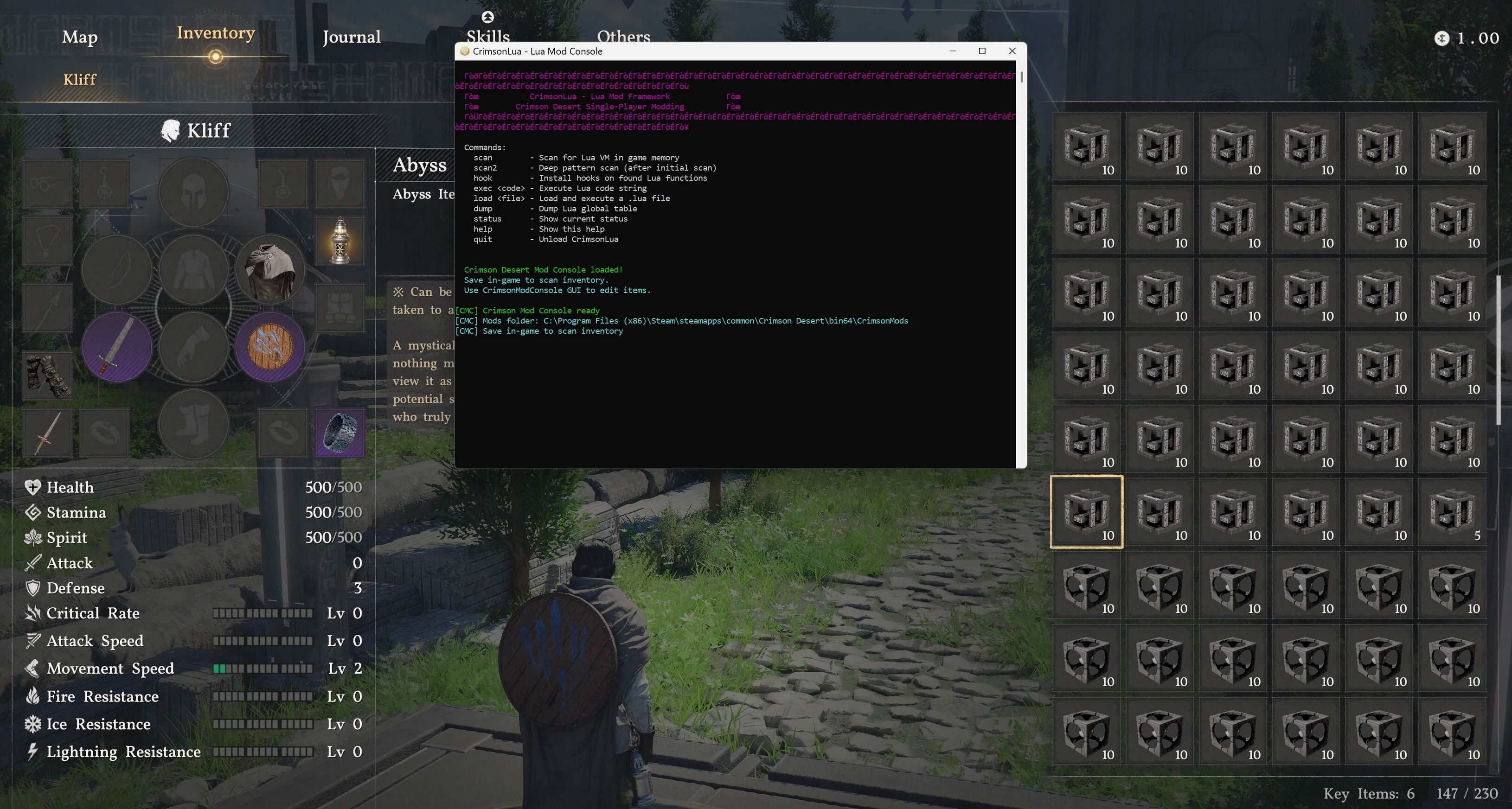
YOU STILL NEED THE GUI TOOL From 1.2, built extractor, dumper, for probing execute command live, scan memory. console will print options, can dump all item keys that were missing. Put into crimsondesert.exe
Extract folder into Bin64 folder where crimsondesert.exe.
Folder Map
CrimsonDesert.exe
Version.dll
CrimsonMods\rawdumps
CrimsonMods\item_names.json
CrimsonMods\config.json
CrimsonMods\CrimsonModConsole.exe
Include bare bones config auto disable bag expansion for those who do not have compatible saves
– Crimson Desert Mod Console v1.0
– (Save Editor)
– Inventory Editor • Item Swapper • Bag Expansion • Auto-Add
– Requires version.dll in bin64/ folder — No injector needed!
– Drop-in DLL • GUI Tool Included • Works with Crimson Desert (Current Build)
– The first save editor for Crimson Desert. Edit your inventory items, swap items, expand bag space, and auto-maintain item stacks — all through a clean GUI tool.
– Your edits apply when you save in-game and take effect when you load that save.
Why does this need a DLL? Why not just edit the save file directly?
Pearl Abyss hides the save file encryption behind a VM inside Denuvo’s protection layer. The encryption algorithm cannot be decompiled or replicated — I tried every standard cipher (AES, RC4, ChaCha20, etc.) and none matched. The only way to modify save data is at runtime, before the game encrypts it. That’s what the DLL does — it hooks the compression step and modifies your save data before the game encrypts and writes it to disk. Your actual save files remain valid and the game loads them normally.
Inventory Editor
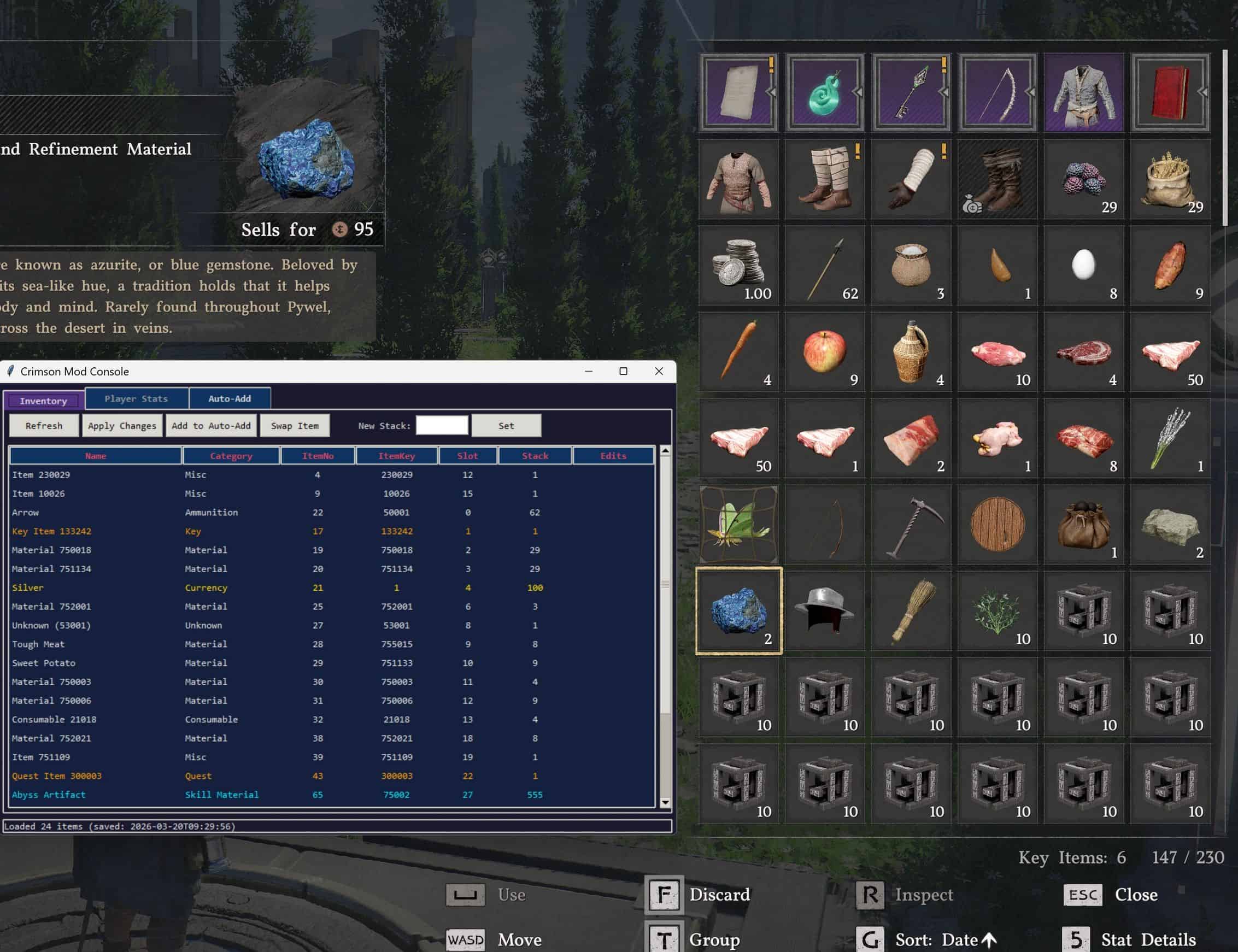
– View all inventory items with stack counts — auto-refreshes every save
– Edit any item’s stack count (set arrows to 999, materials to max, etc.)
– Color-coded items: orange = quest items, gold = currency, cyan = skill materials
– Community item name database — share and update item names with other players
– Right-click any item to rename it or set its category
Item Swapper
– Turn any item into a different item by changing its ItemNo and ItemKey
– Pick from known items dropdown or enter IDs manually
– Useful for getting items you’ve used up or lost
– Works as long as you know the item’s ID (check the community database or this mod’s item list)
Bag Space Expansion
THIS COMES AUTO ENABLE PLEASE EDIT CONFIG.JSON TO TURN IT OFF IF YOU DO NOT WANT IT
– Increase your inventory bag space beyond the normal limit
– Tested up to 230+ bag slots (base game starts at ~50)
– Set via config.json — maintains your bag size on every save
Auto-Add (Maintain Minimum Stacks)
– Set minimum stack counts for important items
– Every time you save, the DLL ensures those items stay at or above the minimum
– Great for skill materials (Abyss Artifacts), arrows, consumables
– Toggle on/off from the GUI
Save Backup
– One-click backup of your entire save folder from the GUI
– Backups saved to CrimsonMods/BackupSaves/ with timestamps
– Always backup before experimenting!
Known Item IDs
Here are some confirmed item IDs. Help us expand this list!
– Abyss Artifact — ItemNo: 65, ItemKey: 75002 (Skill Material)
– Faded Abyss Artifact — ItemNo: 66, ItemKey: 75001 (Skill Material)
– Arrow — ItemNo: 22, ItemKey: 50001 (Ammunition)
– Silver — ItemNo: 21, ItemKey: 1 (Currency — stack = cents, 100 = 1.00 silver)
Found a new item? Right-click it in the GUI, rename it, and share your item_names.json file with the community!
Installation Instructions
No mod loaders, no Python, no injectors needed. Just drop files and play.
– Download and extract the mod files
– Copy version.dll into your game’s bin64/ folder:C:\Program Files (x86)\Steam\steamapps\common\Crimson Desert\bin64\version.dll
– Copy the CrimsonMods folder into the same bin64/ folder:C:\Program Files (x86)\Steam\steamapps\common\Crimson Desert\bin64\CrimsonMods\
– Launch Crimson Desert normally through Steam
– A small console window will appear — press F7 to hide it if you don’t want to see it
– Run CrimsonModConsole.exe from the CrimsonMods folder (the GUI tool)
Quick Start Guide
– Start the game and load your save
– Open CrimsonModConsole.exe (keep it open alongside the game)
– Save your game — the GUI will auto-populate with all your items
– Select items you want to edit → type a new stack count → click Set → click Apply Changes
– Save your game again — the DLL applies your edits during the save
– Load that save — your items are updated!
How to Use Auto-Add
– In the GUI, select an item in the Inventory tab
– Click Add to Auto-Add and set a minimum stack count
– Go to the Auto-Add tab and make sure the checkbox is enabled
– Now every time you save, those items will be maintained at your minimum
How to Expand Bag Space
– Open config.json in the CrimsonMods folder
– Set “enabled”: true and “bagExpansion”: 50 (or whatever you want)
– Save the game — your bag space will increase
– Values up to ~200 confirmed working
How to Swap Items
– Select an item in the Inventory tab (pick something you don’t need)
– Click Swap Item
– Pick from the known items dropdown or enter ItemNo and ItemKey manually
– Set the stack count and click Swap
– Click Apply Changes → Save in-game → Load that save
– The old item is now replaced with the new one
Uninstalling
– Delete version.dll from bin64/
– Delete the CrimsonMods folder
– That’s it — your save files are untouched and will load normally without the mod
Known Limitations
– Cannot add completely new items — only edit or swap existing ones (adding requires inserting bytes which would corrupt the save)Player level editing is disabled for now (changing level without proper skill/ability state causes movement bugs)
– Bag expansion above ~230 slots is untested — use at your own risk
– The DLL console window appears on game launch — press F7 to hide it
– Save edits only apply when you save in-game, not in real-time
Help Wanted: Item Name Database
We need help mapping item IDs to names! When you find a new item:
– Right-click it in the GUI → Rename Item → Enter the in-game name
– Right-click → Set Category (Material, Consumable, Quest, Equipment, etc.)[
– *]Share your item_names.json file in the comments or on Discord
– The more names we map, the better the tool gets for everyone
Roadmap
– Enchant / Endurance / Sharpness editing (per-item stats)
– Player level + stats editing (once we fix the movement bug)
– Full item database from game data extraction
– More inventory categories and equipment slot editing
– One-click “Give me X item” feature
Technical Details
– Proxy DLL (version.dll) — loads alongside the game, no injection needed
– Hooks the LZ4 compressor to intercept save data before encryption
– Pattern-matches ItemSaveData records by field signature (future-proof across game updates)
– Schema is read from the save data itself — auto-adapts to game changes
– Save file format: LZ4 compressed → custom Denuvo-VM encrypted → HMAC-SHA256 verified
– 76 data classes, 531 fields fully mapped in the save schema
– GUI built with Python/tkinter, packaged as standalone .exe











There’s no dll in the zip, only an .exe.
There is only a .exe and no dll inside the zip folder.
mine says “Error: file not found: inventory.json”
in the zip file there are 3 other zip files:
1. Console Mod Only 1.3 Can dump all inventory items-20-1-3-1774069537
2. Console Mod Save Editor Item Editor-20-1-0-1774018313
3. Crimson Console and GUI Tool-20-1-2-1774066233
i used the version.dll from #1. i used # 3’s files except version.dll. i used/copy #2’s item_names.json file with #3’s extraction.
with that said: i loaded the game. saved it. the console, under the Refresh tab, it says “No inventory loaded;” and in the bottom left) corner of the console it says “Waiting for inventory.json…” Nothing is being populated in the console after I have saved my game.
i tried a variations of the files from #2 and #3, yet, still nothing is working as intended.