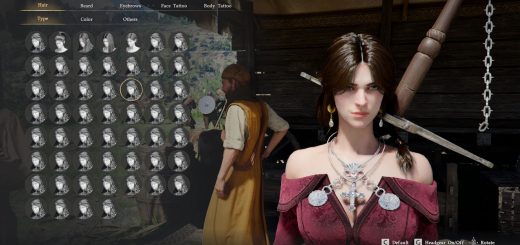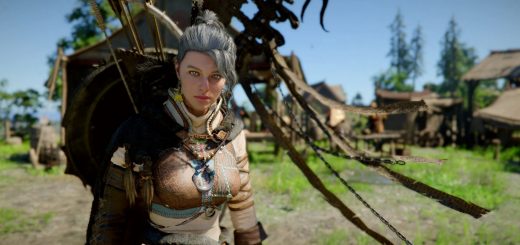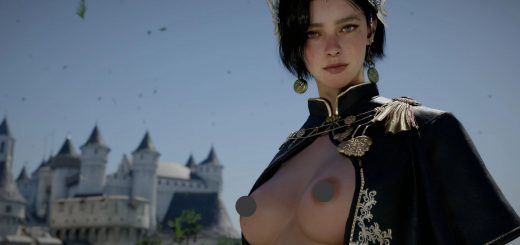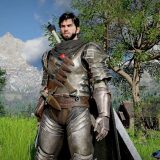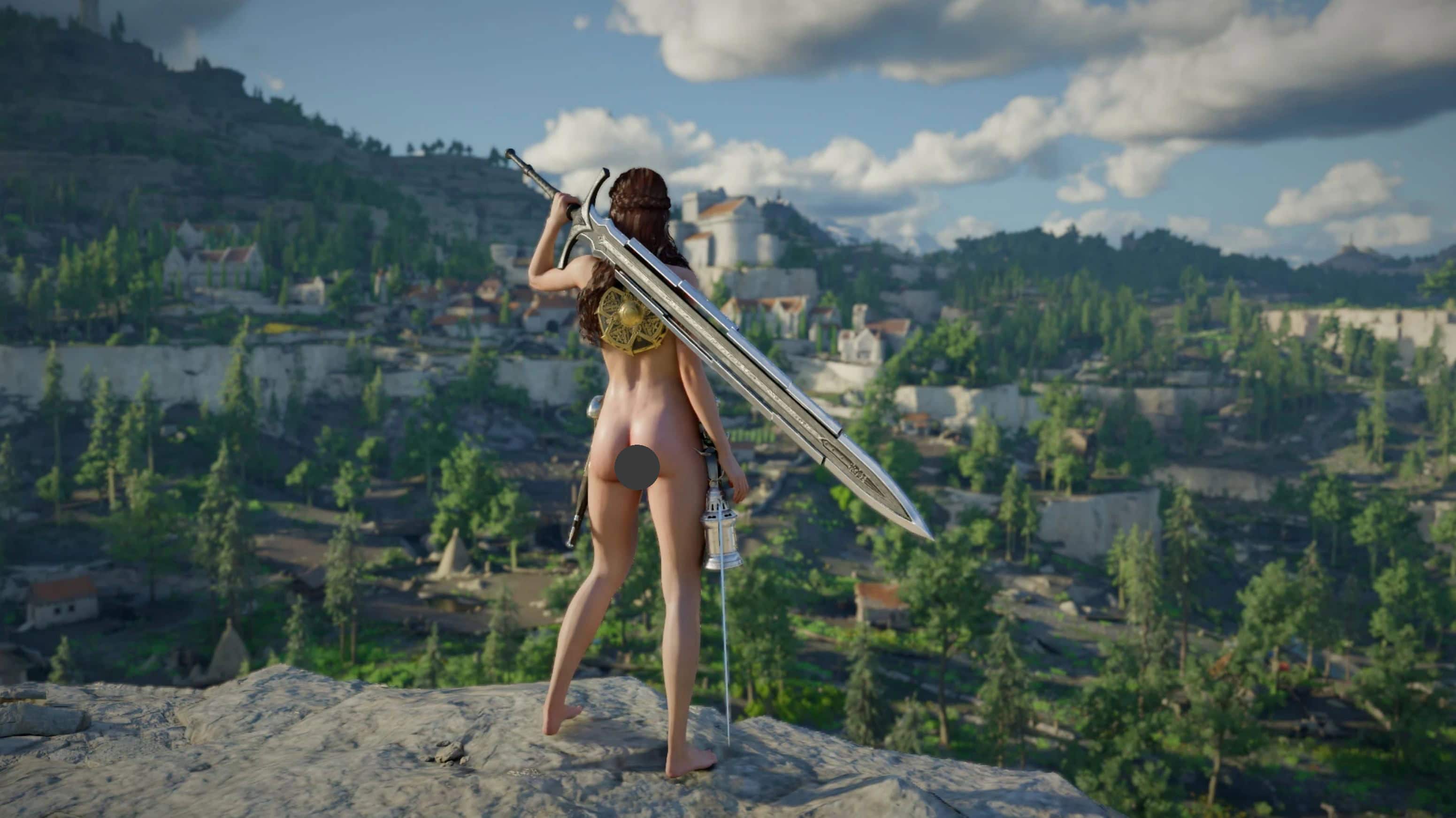
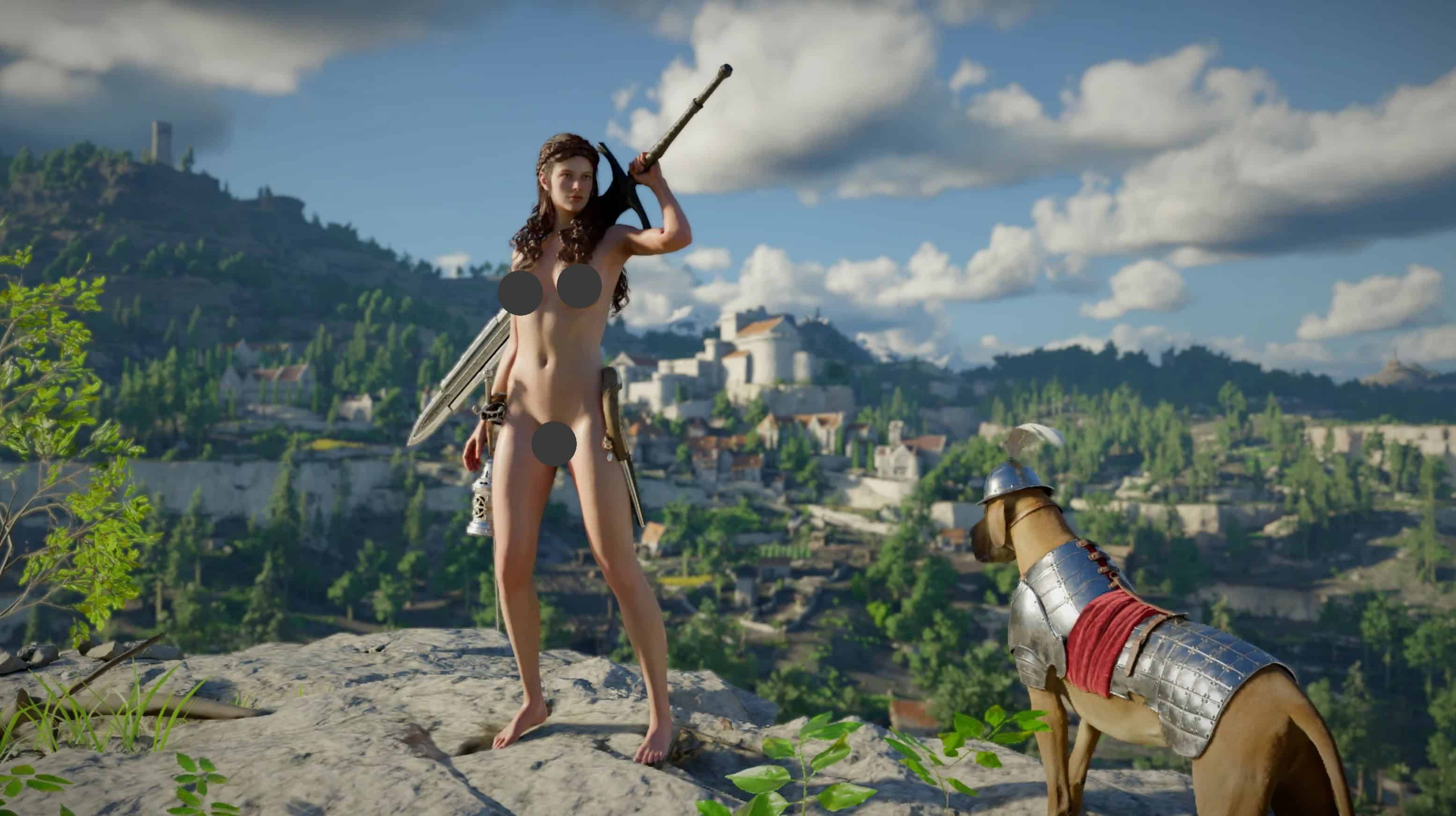
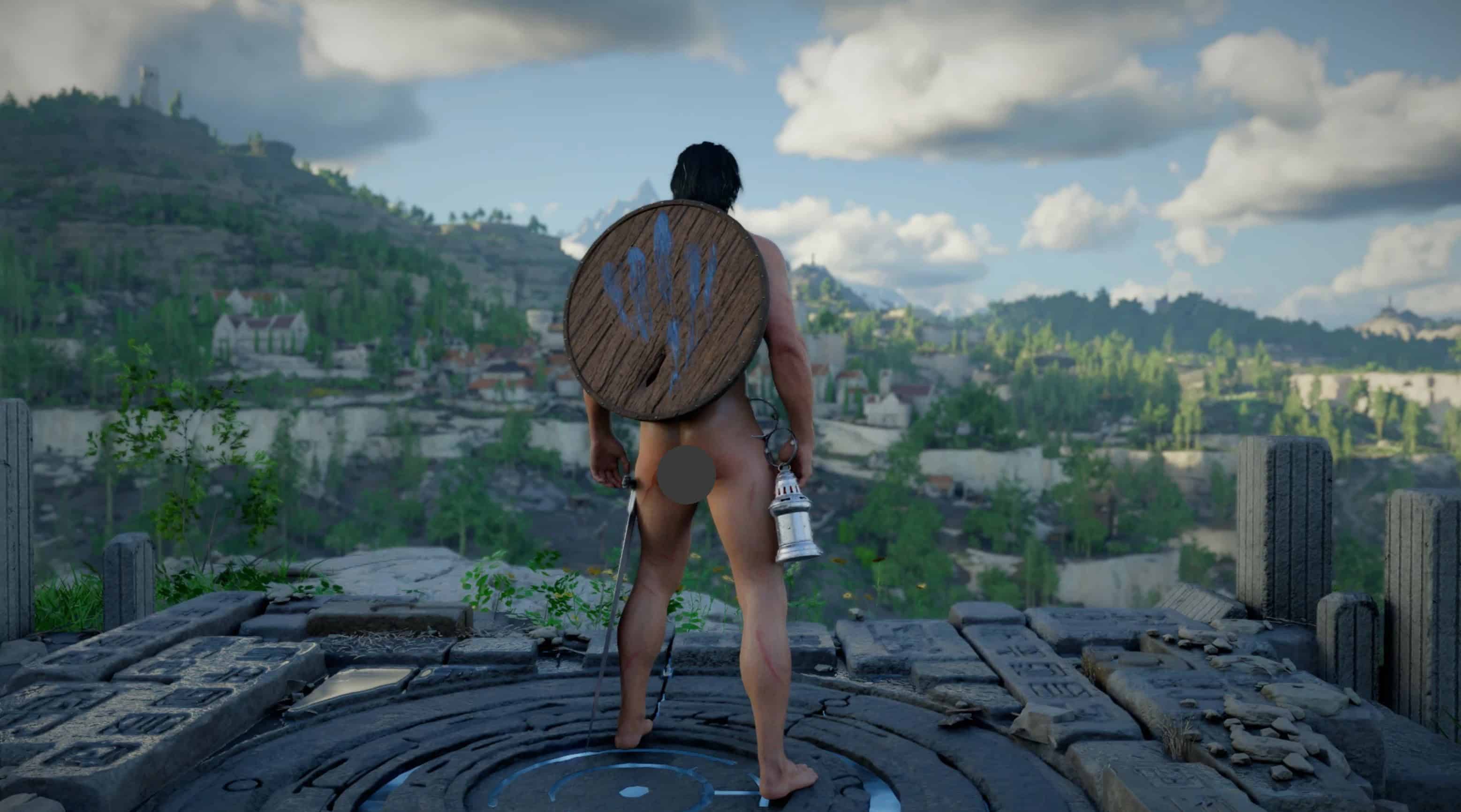
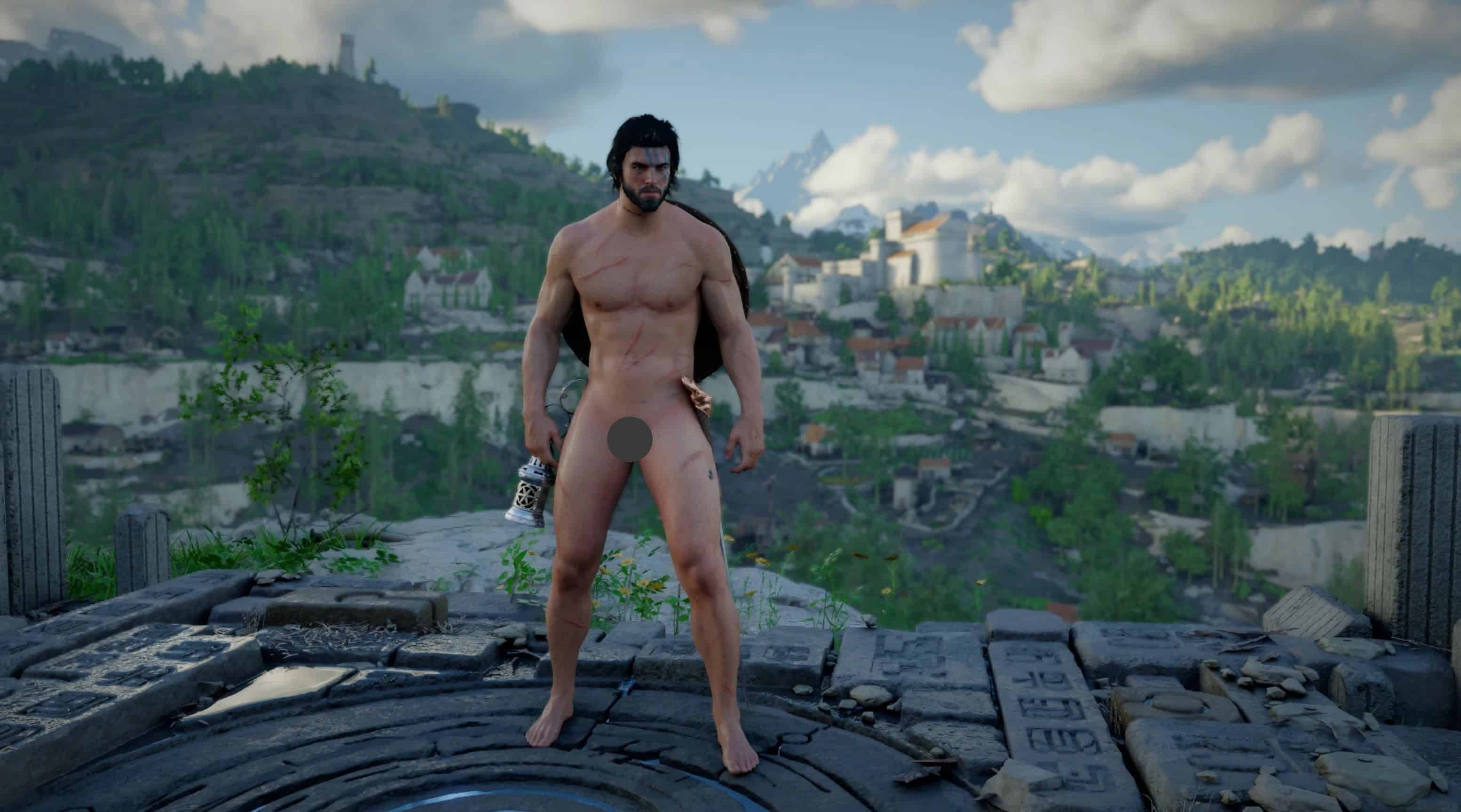
Hide Kliff, Oongka and Damiane’s underwear.
Requirements
– JSON Mod Manager
Kliff Files
nude_character\files\character\appearance\1_pc\1_phm\cd_phm_macduff
nude_character\files\character\bin__\prefab\1_pc\01_phm
Damiane Files
nude_character\files\character\appearance\1_pc\2_phw
nude_character\files\character\bin__\prefab\1_pc\02_phw
Oongka Files
nude_character\files\character\appearance\1_pc\1_phm\cd_phm_oongka
nude_character\files\character\bin__\prefab\1_pc\05_pom
You can choose to install all role files or remove any you don’t need.
How to use:
1. Install using the Mod Manager feature included in Crimson Browser.
2. Place the “nude_character” folder into the “Crimson Browser\mods” directory.
3. Open the Mod Manager interface in Crimson Browser, check the mod, and then click “Build Active Mod”.
4. Click the “Deploy In Game” button and wait for the prompt indicating completion.
5. Once complete, click “Launch Game” to enter the game. From now on, you can launch the game directly every time you play.
6. To uninstall the mod, simply use the “Remove Deployed Mods” option in the Mod Manager interface within Crimson Browser.
7. Before each game update, uninstall the mods and then update the game. If the game has already
been updated, verify the integrity of the game files via Steam before
installing the mods.
* Before each game update, you must uninstall the mod before updating the game. If the game has already been updated, verify the integrity of the game files via Steam and then reinstall the mod. Before reinstalling the mod, delete the “0036” folder and all its contents from the game directory.
* Since this asset replacement mod modifies the game’s asset index files via patches, it will stop working after a game update and must be reinstalled.